


Introduction: Why Version Control in Sharing Actually Matters
As someone who’s juggled documentation across multiple tools for years—Confluence, Notion, Google Docs, you name it—I’ll be honest: I was skeptical when I first heard about Visual Paradigm OpenDocs. Another “all-in-one” platform? Really? But after three months of using it for our architecture documentation and sprint planning artifacts, I’ve become a genuine advocate.
The feature that won me over? How it handles sharing.
If you’ve ever accidentally shared a half-baked diagram with a client, or frustrated your team by sending outdated specs, you know that how you share is just as important as what you share. OpenDocs gives you two distinct modes—Static Snapshot and Live Update—and learning when to use each has transformed how our team collaborates. This isn’t a marketing pitch; it’s my real-world breakdown of what works, what to watch for, and how to pick the right mode for your next share.
1. Static Snapshot: When You Need to “Freeze Time” (My Go-To for Client Deliverables)
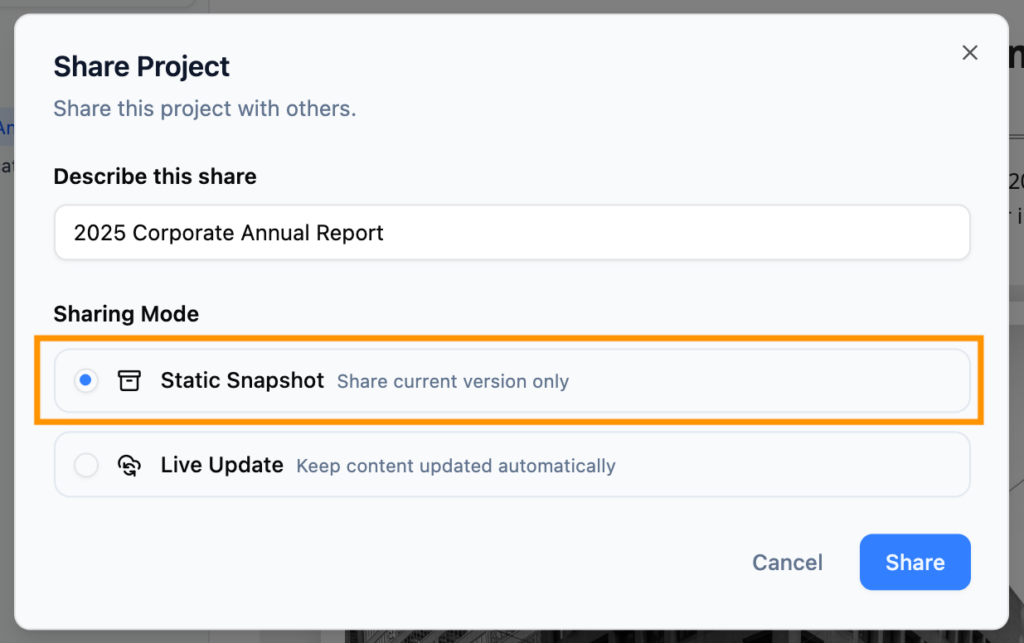
What it feels like to use:
Think of Static Snapshot like hitting “print” on a webpage—but digital. The moment I click “Share” with this option selected, OpenDocs captures exactly what’s on my screen: diagrams, text, formatting, the whole package. Even if I immediately go back and rewrite an entire section or add a new UML sequence diagram, the person with my shared link sees only what existed at that snapshot moment.
My real-world use cases:
- Client proposal reviews: Last month, I shared a system architecture proposal with a stakeholder using Static Snapshot. They could review, comment via email, and feel confident nothing would shift mid-review. No “Wait, did that box move?” moments.
- Compliance documentation: For audit trails, I generate a snapshot at each milestone (v1.0, v1.1, etc.). It creates a clean, unalterable record—critical when regulators ask, “What did the design look like on March 15?”
- Training materials: When onboarding new team members, I share frozen versions of our core workflows. This prevents confusion if I’m actively refining the “live” documentation.
One caveat I learned: If you do need to update a Static Snapshot share, you must generate a new link. I keep a simple naming convention (e.g., ProjectX_Arch_v1.2_Static) to avoid version chaos.
2. Live Update: Real-Time Sync for Teams That Move Fast
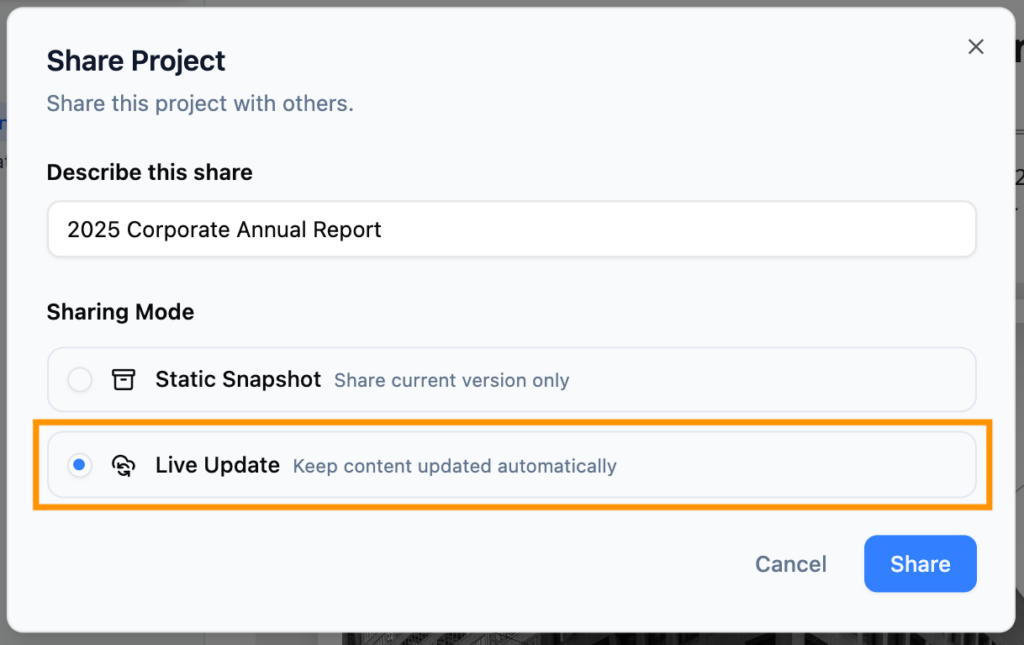
What it feels like to use:
Live Update is like giving someone a window into your OpenDocs workspace. I use this daily for our internal engineering wiki. When I fix a typo, update a dependency version, or refine a flowchart, anyone with the link sees the change instantly—no email, no “new version attached,” no confusion.
Where it shines for me:
- Sprint planning docs: Our Agile team updates user stories and acceptance criteria daily. With Live Update, the product owner, devs, and QA all see the same current state during stand-ups.
- Runbooks and troubleshooting guides: When an incident happens, I update the resolution steps in real-time. The on-call engineer following the shared link always has the latest fix.
- Cross-functional collaboration: Marketing and engineering co-own our API documentation. Live Update ensures both sides work from the same source, reducing “which version is right?” friction.
My word of caution: Because changes propagate instantly, I double-check edits before saving when a Live link is active. I also restrict Live shares to trusted internal audiences—never to external clients unless we’re in an active, collaborative workshop.
Quick Comparison: My Cheat Sheet
| Feature | Static Snapshot | Live Update |
|---|---|---|
| Content Changes | Remains the same as when shared. | Updates automatically with your edits. |
| Best Usage | Milestones & Archiving. | Ongoing Projects & Manuals. |
| Security | Safe from accidental “work-in-progress” leaks. | Requires care as edits are seen immediately. |
My personal addition:
- Undo flexibility: With Static, if I share the wrong version, I just reshare. With Live, I rely on OpenDocs’ version history to roll back if needed.
- Bandwidth consideration: Live Update feels slightly more responsive on stable connections; Static loads instantly even on spotty Wi-Fi since it’s a frozen payload.
How I Choose My Mode: A Practical Decision Flow
When the Share Project dialog pops up in OpenDocs, I ask myself three quick questions:
- Who is the audience?
→ External/client? Static Snapshot.
→ Internal/team? Live Update (usually). - Is this content still evolving?
→ Yes, daily changes? Live Update.
→ Finalized for review? Static Snapshot. - Do I need an audit trail?
→ Yes? Static Snapshot at each milestone.
→ No, just current truth? Live Update.
Then I simply click the matching option before hitting Share. It takes seconds, but saves hours of version confusion later.
Pro Tip from my workflow: I keep two bookmarked links for critical projects—one Static (for formal reviews) and one Live (for daily team syncs). Naming them clearly in my browser bookmarks prevents accidental mix-ups.
Conclusion: Sharing Smarter, Not Harder
After using OpenDocs extensively, I can confidently say that the Static vs. Live sharing choice isn’t just a technical toggle—it’s a collaboration strategy.
- Use Static Snapshot when clarity, control, and compliance matter most. It’s your safety net for external communication and formal approvals.
- Use Live Update when agility, transparency, and real-time alignment drive your work. It’s the engine for internal velocity.
What I appreciate most is that OpenDocs doesn’t force a one-size-fits-all approach. As a product manager who bridges technical and non-technical stakeholders, having this flexibility means I can tailor the sharing experience to the context—not the other way around.
If you’re evaluating knowledge management tools, test this feature early. Share a test page both ways, send the links to a colleague, and see how the experience feels. For me, that small choice has made documentation less of a chore and more of a catalyst for better teamwork.
References
- Visual Paradigm OpenDocs: The Complete Guide to AI-Powered Knowledge Management and Diagram Generation: A comprehensive third-party guide covering OpenDocs’ AI-powered features for unified knowledge management, automated diagram creation, and team collaboration workflows.
- OpenDocs Features – Visual Paradigm: Official feature overview detailing OpenDocs’ integrated rich text editor, diagramming tools, AI automation, and cloud-based accessibility for technical documentation.
- Visual Paradigm OpenDocs: The Complete Developer’s Guide to AI-Powered Technical Documentation: Developer-focused resource exploring how to leverage OpenDocs for code-centric documentation, live diagram embedding, and AI-assisted content generation.
- OpenDocs AI Tool – Visual Paradigm: Overview of OpenDocs’ AI capabilities, including natural-language-to-diagram generation, intelligent content suggestions, and automated documentation workflows.
- Harnessing Visual Paradigm’s AI for Diagram Generation: The Ultimate 2026 Guide: In-depth exploration of using Visual Paradigm’s AI tools to transform text descriptions into professional UML, flowcharts, ERDs, and other diagram types within OpenDocs.
- AI Flowchart Generator – OpenDocs Update: Release announcement detailing the new AI-powered flowchart creation feature, allowing users to generate editable process diagrams from plain-language prompts.
- Sync AI Diagram to OpenDocs Pipeline Guide: Step-by-step tutorial for configuring the OpenDocs Pipeline to automatically sync diagrams created in Visual Paradigm Desktop or Online, ensuring documentation stays current with model changes.
- From Idea to Enterprise: My Journey Through Visual Paradigm’s Four AI Pillars: Personal case study documenting real-world implementation of Visual Paradigm’s AI features—including OpenDocs—across discovery, design, development, and deployment phases.
- OpenDocs Professional Mind Map Integration: Update coverage of professional-grade mind mapping capabilities added to OpenDocs, enabling visual brainstorming and hierarchical knowledge organization within documentation.
- New in OpenDocs: AI-Powered Data Flow Diagram (DFD) Support: Release notes introducing AI-assisted creation of Data Flow Diagrams, allowing users to model system processes and data movements using natural language input.
-
AI Component Diagram Generator – OpenDocs Update: Feature announcement for AI-powered component diagram generation, streamlining the creation of architectural overviews and system decomposition visuals within OpenDocs documentation.