
Now Reading: Comprehensive Guide to UML State Machine Diagrams: A Case Study of a Heating/Cooling System
-
01
Comprehensive Guide to UML State Machine Diagrams: A Case Study of a Heating/Cooling System


Comprehensive Guide to UML State Machine Diagrams: A Case Study of a Heating/Cooling System
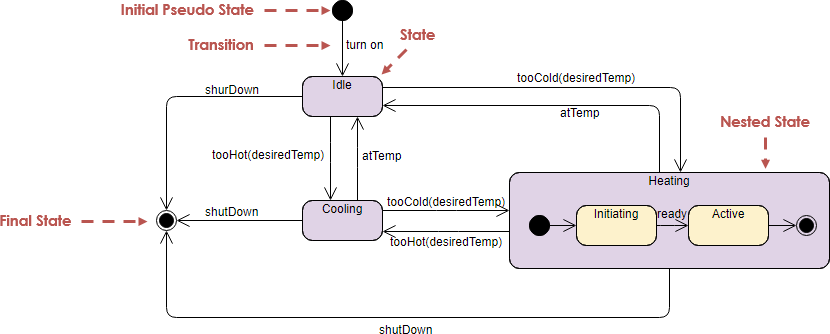
This guide provides a detailed, structured explanation of UML State Machine Diagrams, using a real-world example of a heating/cooling system to illustrate key concepts, components, and best practices. The diagram models the lifecycle of the system through distinct states, transitions, events, and actions—making it ideal for understanding dynamic behavior in software and embedded systems.
🔷 1. Introduction to UML State Machine Diagrams
A UML (Unified Modeling Language) State Machine Diagram is a behavioral diagram that captures how an object changes its state in response to events over time. It is particularly useful for modeling systems with complex, event-driven behavior such as:
-
Embedded control systems (e.g., thermostats, elevators)
-
User interfaces
-
Communication protocols
-
Industrial automation
The diagram emphasizes state, transitions, events, and actions, offering a clear visual representation of the system’s behavior throughout its lifecycle.
✅ Key Use Case: This guide uses a heating/cooling system to demonstrate how state machines model real-time environmental control logic.
🔷 2. Core Concepts of State Machine Diagrams
Below are the fundamental elements used in UML state machine diagrams, with explanations and visual interpretations.
| Element | Description | Visual Representation |
|---|---|---|
| State | A condition or situation during the life of an object. States represent what the system is doing at a given moment. | Rounded rectangle (e.g., Idle, Cooling) |
| Initial Pseudostate | The starting point of the state machine. It is not a real state but indicates where execution begins. | Solid black circle (●) |
| Final State | Indicates that the system has completed its operation and terminates. | Bullseye symbol (●○) — solid circle inside a hollow one |
| Transition | A directed arrow from one state to another, triggered by an event. Can include conditions, actions, and guards. | Arrow with optional label (e.g., onTempTooHigh → Cooling) |
| Nested State (Composite State) | A state that contains substates. Used to model complex internal behavior without cluttering the diagram. | A state containing smaller states inside (e.g., Heating → Initiating, Active) |
📌 Note: The initial pseudostate is always the source of the first transition. The final state is the terminal destination—no outgoing transitions are allowed.
🔷 3. Component Analysis: The Heating/Cooling System
Let’s break down each component of the provided diagram and interpret its role in the system’s lifecycle.
🟦 1. Idle
-
Description: The default, resting state of the system.
-
Behavior: The system monitors the ambient temperature but performs no active heating or cooling.
-
Entry Condition: Initially entered from the Initial Pseudostate.
-
Exit Trigger: Temperature change beyond set thresholds.
✅ Example: When the thermostat is powered on, it starts in
Idle.
🟨 2. Cooling
-
Description: The system activates its cooling mechanism when the temperature exceeds the upper threshold.
-
Trigger:
onTempTooHigh(event indicating temperature is too hot). -
Action: Activate fan or AC unit.
-
Exit Condition: Temperature drops below the acceptable range.
⚠️ Note: This state is orthogonal to
Heating—only one ofCoolingorHeatingcan be active at a time.
🟨 3. Heating (Composite State)
-
Description: A composite state that encapsulates the internal behavior of the heating process.
-
Purpose: To model the sequence of steps involved in heating, avoiding flat state explosion.
-
Substates:
-
Initiating: The initial phase where the heating system begins preparation (e.g., checking safety sensors, initializing control loop).
-
Active: The main operational phase where the heater is running and maintaining the desired temperature.
-
🔍 Why Use Nested States?
Reduces complexity by grouping related behaviors.
Allows for hierarchical modeling (e.g.,
Heating → Active).Supports entry/exit actions at different levels.
🔴 4. Shutdown
-
Description: A system-level event that forces the system to terminate.
-
Trigger:
shutdown(e.g., manual override, power loss, emergency stop). -
Effect: Regardless of current state (
Idle,Cooling,Heating, etc.), the system transitions to the Final State. -
Implementation: Often implemented as a global transition from any state to
Final State.
💡 Best Practice: Use
shutdownas a priority event to ensure graceful termination.
🟢 5. Final State
-
Description: The end of the system’s lifecycle.
-
Behavior: No further transitions occur. The system is considered terminated.
-
Representation: Bullseye symbol (●○) — the only terminal state.
✅ Example: After a shutdown command, the system powers down and enters
Final State.
🔷 4. Transition Logic and Event Flow
Below is a summary of all possible transitions in the system:
| From State | Event | To State | Condition / Action |
|---|---|---|---|
| Initial Pseudostate | — | Idle | System starts |
| Idle | onTempTooHigh |
Cooling | Activate cooling system |
| Idle | onTempTooLow |
Heating (Initiating) | Begin heating sequence |
| Cooling | onTempNormal |
Idle | Temperature back in range |
| Heating (Initiating) | heatingReady |
Heating (Active) | System ready to heat |
| Heating (Active) | onTempNormal |
Idle | Desired temperature reached |
| Any State | shutdown |
Final State | Emergency or manual stop |
🔄 Note: The
shutdownevent overrides all other transitions, ensuring immediate termination.
🔷 5. Best Practices for Designing State Machine Diagrams
To create effective, maintainable, and scalable state machine diagrams:
✅ 1. Use Composite States for Complex Behavior
-
Group related substates (e.g.,
Heating → Initiating,Active) to reduce diagram clutter. -
Apply entry/exit actions at the composite level for initialization/shutdown routines.
✅ 2. Define Clear Events and Guards
-
Use meaningful event names (e.g.,
onTempTooLow,heatingReady). -
Add guards (conditions in brackets) to prevent invalid transitions:
[temperature < 18°C] → Heating
✅ 3. Avoid Redundant Transitions
-
Ensure no duplicate or conflicting transitions exist.
-
Use orthogonal regions (if needed) for independent behaviors (e.g., cooling and alarm system).
✅ 4. Handle Termination Gracefully
-
Always include a shutdown or reset event leading to
Final State. -
Consider whether
Final Stateshould be reachable from all states.
✅ 5. Document Entry/Exit Actions
-
Specify actions performed when entering or exiting a state:
-
entry / turn on heater -
exit / turn off heater
-
🔷 6. Real-World Applications
State machine diagrams are widely used in:
| Industry | Application |
|---|---|
| HVAC Systems | Thermostats, smart climate control |
| Automotive | Cruise control, engine start/stop logic |
| Consumer Electronics | Remote controls, smart home devices |
| Industrial Control | Conveyor belts, robotic arms |
| Software | User interface workflows, game AI states |
🛠️ Example: In a smart thermostat, the state machine ensures that heating and cooling don’t overlap, prevents system failure during startup, and allows for emergency shutdown.
🔷 7. Summary: Key Takeaways
| Concept | Importance |
|---|---|
| States | Define what the system is doing at any time |
| Transitions | Show how the system evolves in response to events |
| Composite States | Enable structured modeling of complex behaviors |
| Initial/Final States | Define the beginning and end of the system’s lifecycle |
| Events & Guards | Control when transitions occur |
| Actions | Specify side effects (e.g., turning on a fan) |
✅ Final Tip: Always validate your state machine against real-world scenarios. Ask:
Does every state have a valid exit path?
Can the system get stuck in a state?
Is the
shutdownevent handled globally?
🔷 8. References & Further Reading
- Mastering Swimlane Activity Diagrams: A Practical Guide with Examples: This detailed guide provides real-world examples to help users visualize workflows across different roles or departments.
- A Guide to Creating Swimlane Activity Diagrams: This resource offers a step-by-step guide on designing swimlane activity diagrams to effectively model business processes with role-based flow.
- Tutorial on UML Swimlane Activity Diagrams – Cybermedian: This tutorial focuses on the application of swimlanes within UML activity diagrams for improved process visualization.
- Activity Diagram Example: Swimlane: This community-shared example illustrates how to use swimlanes in a UML activity diagram, featuring transitions and mutually exclusive branches.
- Case Study: ATM Transaction Process Using Swimlane Activity Diagram: This practical case study demonstrates the ATM transaction process through the lens of a swimlane activity diagram.
- Swimlane Diagram Tool for Process Visualization: This overview details a powerful online tool designed for creating swimlane diagrams to map workflows and assign responsibilities across teams.
- What Is an Activity Diagram? | UML Guide by Visual Paradigm: This in-depth explanation covers the purpose, components, and use cases of activity diagrams in modeling system workflows and business processes.
- Activity Diagram Tutorial | Step-by-Step Guide | Visual Paradigm: A comprehensive tutorial aimed at beginners to help them model complex workflows using activity diagrams.
- Activity Diagrams in Software Design | Visual Paradigm Handbook: This handbook section provides a detailed guide on effectively mapping system behavior and decision points using activity diagrams.
- Generate Activity Diagrams from Use Cases Instantly with Visual Paradigm’s AI: This article discusses how an AI engine can rapidly convert use case descriptions into professional UML activity diagrams.
✅ Conclusion
The UML State Machine Diagram is a powerful tool for modeling dynamic systems. By breaking down the behavior of a heating/cooling system into well-defined states and transitions, we gain clarity, predictability, and maintainability. Whether designing embedded systems, software applications, or industrial controls, mastering state machines leads to more robust, event-driven designs.
🔷 Tooling: Modeling the Heating/Cooling System State Machine with Visual Paradigm
To bring the UML State Machine Diagram of the heating/cooling system to life, Visual Paradigm is a powerful, intuitive, and industry-standard tool that supports full UML modeling, including state machine diagrams. This section provides a step-by-step guide to creating, editing, and validating the state machine diagram using Visual Paradigm (VP)—ideal for developers, system architects, and business analysts.
🛠️ Why Use Visual Paradigm for State Machine Modeling?
Visual Paradigm offers a comprehensive suite of features tailored for UML modeling:
-
Drag-and-drop interface for rapid diagram creation
-
Auto-layout and alignment tools for clean, professional diagrams
-
Real-time validation of UML syntax and semantics
-
Integration with requirements, use cases, and code generation
-
Collaboration features for team-based modeling
-
Support for nested states, entry/exit actions, and guards
✅ Best For: Teams building embedded systems, IoT devices, or control software where state-driven behavior is critical.
📌 Step-by-Step: Creating the Heating/Cooling System State Machine in Visual Paradigm
✅ Step 1: Launch Visual Paradigm and Create a New Project
-
Open Visual Paradigm.
-
Click “New Project” → Select “UML” as the modeling type.
-
Choose “State Machine Diagram” from the template list.
-
Name your diagram:
HeatingCoolingSystem_StateMachine.
💡 Tip: Save your project in a dedicated folder (e.g.,
Thermostat_Control_System) for better organization.
✅ Step 2: Add the Initial Pseudostate
-
From the Toolbox on the left, locate the Pseudostate icon (represented as a small black circle).
-
Click and drag the Initial Pseudostate onto the diagram canvas.
-
Label it
initial(optional, but helpful for clarity).
✅ This will be the starting point of your state machine.
✅ Step 3: Create the Main States
-
From the Toolbox, select the State icon (rounded rectangle).
-
Drag and drop the following states onto the canvas:
-
Idle -
Cooling -
Heating -
Shutdown(Note: This is not a state but an event—see Step 5) -
Final State(Use the bullseye symbol)
-
📝 Pro Tip: Use the “Add State” button in the toolbar for quick additions.
✅ Step 4: Model the Composite State (Heating)
-
Select the State tool and draw a rectangle labeled
Heating. -
Right-click on the
Heatingstate → Choose “Convert to Composite State”. -
Now, add two substates inside
Heating:-
Right-click
Heating→ “Add State” → Name itInitiating -
Repeat → Name the second state
Active
-
✅ Visual Paradigm automatically nests these states and displays them as child elements.
✅ Step 5: Define Transitions with Events and Actions
-
From the Toolbox, select the Transition tool (arrow).
-
Click on the Initial Pseudostate → Drag to
Idle.-
Label the transition:
onStartup(or leave blank if no action needed).
-
-
From
Idle→Cooling:-
Label:
onTempTooHigh → activateCooling()
-
-
From
Idle→Heating:-
Label:
onTempTooLow → Heating.Initiating
-
-
From
Initiating→Active:-
Label:
heatingReady → enter Active
-
-
From
Active→Idle:-
Label:
onTempNormal → stopHeating()
-
-
From
Cooling→Idle:-
Label:
onTempNormal → stopCooling()
-
-
Global Shutdown Transition:
-
From any state (use the “From Any State” option):
-
Click
Heating,Cooling, orIdle→ drag arrow toFinal State. -
Label:
shutdown → exitSystem()
-
-
🔍 Advanced: Use the “Guard” field to add conditions (e.g.,
[temperature < 18°C]).
Use the “Action” field to define entry/exit behaviors (e.g.,entry / log("Heating started")).
✅ Step 6: Add the Final State
-
From the Toolbox, select the Final State icon (bullseye).
-
Drag it onto the canvas.
-
Connect it with a transition from any state (via the global
shutdownevent).
✅ The Final State is terminal—no outgoing transitions allowed.
✅ Step 7: Enhance with Entry/Exit Actions and Guards
-
Right-click on any state (e.g.,
Heating) → “Properties”. -
In the “Entry” field, enter:
entry / initializeHeatingSystem() -
In the “Exit” field, enter:
exit / shutDownHeating() -
For transitions with conditions, use the “Guard” field:
-
Example:
[systemEnabled = true]before transitioning toActive
-
🧠 Tip: Use “Action” to define side effects like logging, sensor activation, or UI updates.
✅ Step 8: Validate and Export the Diagram
-
Validate the Diagram:
-
Click “Validate” (under the Tools menu).
-
VP checks for missing transitions, invalid state nesting, and syntax errors.
-
-
Auto-Layout:
-
Select all elements → Right-click → “Arrange” → “Auto Layout” for a clean, professional look.
-
-
Export the Diagram:
-
Go to File → Export.
-
Choose format: PNG, PDF, SVG, or Word/PPT.
-
Ideal for documentation, presentations, or sharing with stakeholders.
-
-
Generate Documentation:
-
Use “Generate Report” to create a detailed UML documentation file with state descriptions, transitions, and actions.
-
📊 Visual Paradigm Features That Enhance State Machine Modeling
| Feature | Benefit |
|---|---|
| Live Preview | See changes in real time as you build the diagram |
| Model Validation | Automatically detects logical errors (e.g., unreachable states) |
| Code Generation | Generate Java, C++, or Python code from the state machine |
| Version Control Integration | Sync with Git, SVN, or Visual Paradigm Cloud |
| Team Collaboration | Share diagrams via cloud workspace with real-time editing |
🌐 Cloud Option: Use Visual Paradigm Online for remote teams—no installation needed.
🎯 Best Practices When Using Visual Paradigm
-
Use Meaningful Labels: Name events clearly (e.g.,
onTempTooLow,shutdown). -
Group Related States: Use composite states (like
Heating) to avoid clutter. -
Leverage Entry/Exit Actions: Capture side effects like logging, sensor checks, or UI updates.
-
Test with Real Scenarios: Simulate temperature changes to verify all transitions work.
-
Document Assumptions: Use notes in VP to explain guard conditions or external dependencies.
📎 Example: Exported Diagram Output
After completing the model, your final diagram in Visual Paradigm will include:
-
A clear Initial Pseudostate (●)
-
States:
Idle,Cooling,Heating,Initiating,Active -
Composite State:
Heatingwith nested substates -
Final State (●○)
-
Transitions with labeled events, guards, and actions
-
Clean layout with auto-arrangement
✅ Ideal for use in technical documentation, design reviews, or as input for embedded firmware development.
Visual Paradigm as a State Machine Powerhouse
Visual Paradigm transforms abstract UML concepts into tangible, actionable models. By following this guide, you can efficiently design, validate, and document the lifecycle of a heating/cooling system—or any event-driven system—using a professional-grade tool that supports collaboration, code generation, and real-time feedback.
🛠️ Final Tip: Start simple, iterate, and use VP’s validation tools to ensure your state machine is both logically correct and operationally robust.
🧠 AI Disclaimer: While AI can assist in generating diagram content, always verify logic and structure in Visual Paradigm to ensure accuracy and compliance with system requirements.
📌 Next Step: Try modeling a traffic light system or elevator controller using the same techniques. Visual Paradigm makes complex state logic accessible and visual—perfect for both beginners and experts.