
Enterprise architecture is a complex discipline that relies heavily on clarity and consistency. When you work with the ArchiMate modeling language, the separation between the model, the views, and the viewpoints is fundamental to its success. However, in practice, discrepancies often arise. You might find that a specific view does not accurately represent the underlying model, or that the viewpoint definition conflicts with the stakeholder’s expectations. This guide provides a deep dive into diagnosing these issues and implementing robust fixes without relying on specific proprietary tools.
Understanding the Core Components 🔍
Before troubleshooting, it is essential to define the terminology clearly. Inconsistencies usually stem from a misunderstanding of the relationship between the model, the view, and the viewpoint. These three concepts form the backbone of the ArchiMate specification.
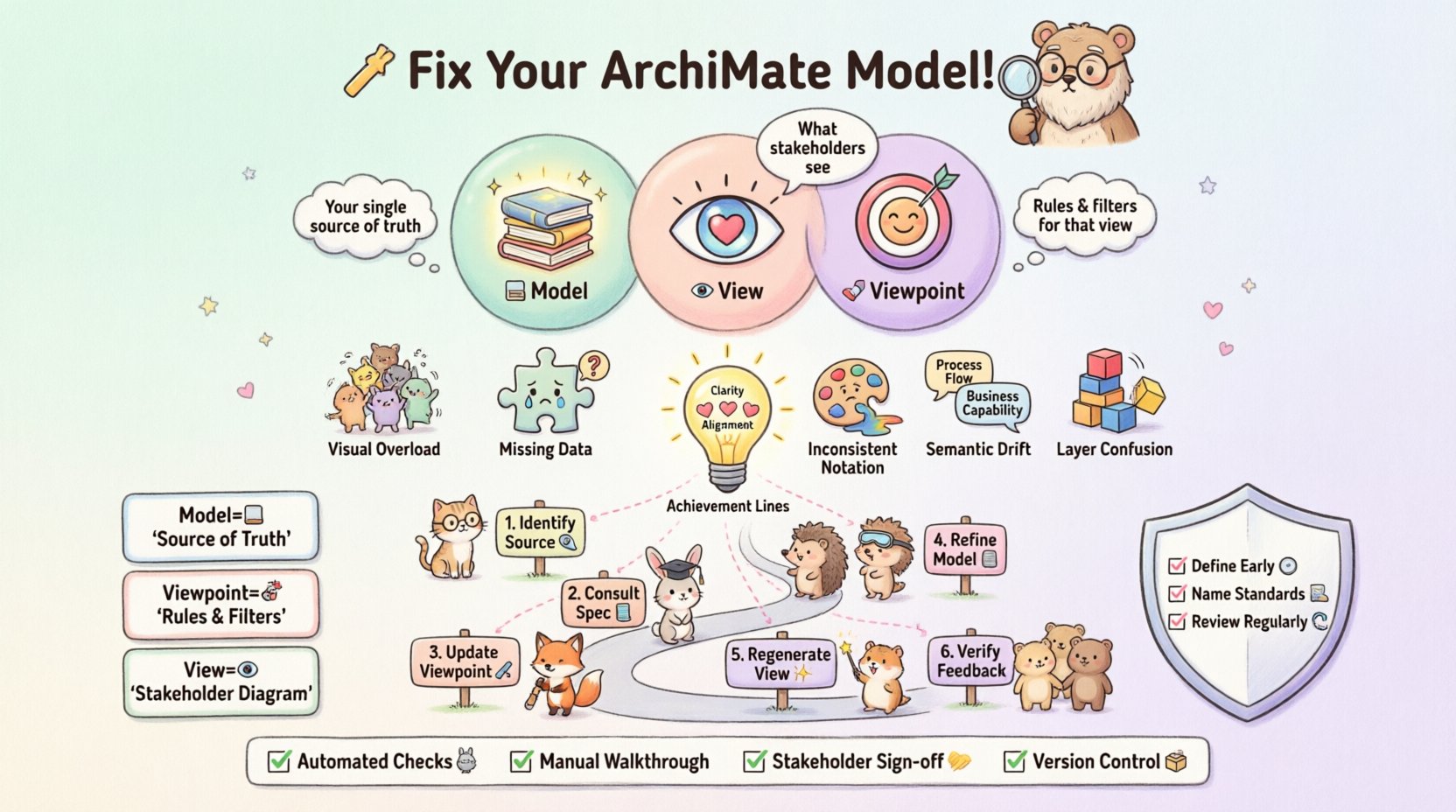
- Architecture Model: This is the comprehensive repository of all architecture elements. It contains every object, relationship, and constraint defined within the project. It is the single source of truth.
- View: A view is a specific representation of the model tailored for a particular audience. It selects specific elements and relationships from the model to answer specific questions.
- Viewpoint: A viewpoint defines the conventions, notations, and rules used to create a view. It specifies which elements are relevant for a specific type of stakeholder.
When a Viewpoint does not match, it means the rules governing the view are either too broad, too narrow, or semantically misaligned with the actual data in the model. This creates noise, confusion, and potential governance risks.
Common Symptoms of Mismatched Viewpoints ⚠️
Identifying the problem is half the battle. Architects often notice these issues through feedback loops or during review sessions. Here are the most frequent indicators that your ArchiMate model needs attention.
- Visual Overload: A view displays too many elements, making it unreadable. This suggests the viewpoint filters are not strict enough.
- Missing Critical Data: Stakeholders ask, “Where is the application support for this business process?” If the model has the data but the view hides it, the viewpoint is misconfigured.
- Inconsistent Notation: Different views of the same model use different colors, shapes, or line types for the same element types. This violates the standard definition of the viewpoint.
- Semantic Drift: The terminology used in the view does not match the glossary defined in the model. For example, using “Service” in one view and “Business Service” in another when they should be synonymous.
- Layer Confusion: Elements from the Application Layer appear in a Business Layer view without proper justification, or vice versa.
Diagnosing Structural Inconsistencies 🔨
Structural issues occur when the relationships between elements do not hold up against the viewpoint rules. The ArchiMate specification relies on strict layering and relationship rules. When these are violated in a view, the model is technically invalid for that audience.
1. Cross-Layer Violations
One of the most common errors involves crossing architectural layers incorrectly. The specification dictates how layers interact. For instance, a Business Process should not be directly connected to a Technology Node without an Application Service in between.
- Check the Viewpoint Rules: Does the viewpoint explicitly allow cross-layer relationships?
- Validate the Model: Ensure the underlying model adheres to the standard semantics. If the model is wrong, the viewpoint cannot fix it.
- Review the View: Does the view display the connection? If so, is it justified by the business context?
2. Relationship Directionality
ArchiMate relationships have specific directions (e.g., serving, triggering, realizing). A mismatch often happens when a view renders a relationship in the wrong direction or assumes a bidirectional link where none exists.
- Inspect the Metadata: Check the underlying relationship definition.
- Verify the Viewpoint Filter: Some viewpoints are designed to hide relationship directions to simplify the diagram. Ensure this aligns with the stakeholder’s need for precision.
Addressing Semantic Drift 🗣️
Semantic drift is a subtler issue. It occurs when the meaning of the elements changes between the model and the view, or between different views. This often happens when multiple architects contribute to the same model without strict governance.
1. Naming Conventions
Consistency in naming is vital for searchability and understanding. If your viewpoint expects a specific prefix or suffix for certain element types, the model must comply.
- Standardize the Glossary: Ensure all elements reference a central glossary.
- Apply Filters: Configure the viewpoint to highlight elements that violate naming standards.
- Review Documentation: Check if the view documentation explains the naming logic clearly.
2. Element Classification
Classifying an element as an “Actor” instead of a “Role” changes the dynamic of the model. A viewpoint should enforce the correct classification based on the stakeholder’s perspective.
- Check Element Types: Are all “People” defined as Actors?
- Check Process Types: Are all activities defined as Processes or Functions correctly?
- Validate Relationships: Does the relationship type match the element types (e.g., “Realization” vs “Assignment”)?
The Troubleshooting Workflow 📋
When you encounter a mismatch, follow this structured approach to resolve it. This workflow ensures you do not accidentally introduce new errors while fixing old ones.
- Identify the Source: Is the error in the Model, the View, or the Viewpoint definition?
- Consult the Specification: Refer to the official ArchiMate standard to verify the correct relationship and element usage.
- Update the Viewpoint: Adjust the filters and rules in the viewpoint definition to better reflect the intended scope.
- Refine the Model: If the model is the source of the error, correct the element relationships or types.
- Regenerate the View: Apply the changes and generate the view again.
- Verify Stakeholder Feedback: Show the updated view to the stakeholders to confirm it meets their needs.
Best Practices for Prevention 🛡️
Preventing mismatches is more efficient than fixing them. By establishing strong governance early, you reduce the technical debt of your architecture repository.
1. Define Viewpoints Early
Do not wait until the model is complete to define your viewpoints. Define them at the start of the project. This sets the rules for the data entry and ensures the model is built with the views in mind.
- Document the target audience for each viewpoint.
- Specify the required layers and relationships.
- Define the visual style guidelines (colors, shapes).
2. Enforce Naming Standards
Automate naming checks where possible. Many modeling environments allow for scripts or rules that validate naming conventions upon element creation.
- Use a standard format (e.g., [Layer]-[Function]-[ID]).
- Require mandatory fields for key attributes.
- Conduct regular audits of the element library.
3. Regular Model Reviews
Schedule periodic reviews where the model is checked against the viewpoints. This ensures that as the model evolves, the viewpoints remain relevant and the views remain accurate.
- Include stakeholders in the review process.
- Focus on the gaps between the model and the view.
- Document any deviations and get approval.
Comparison: Viewpoint vs. View vs. Model 📊
To clarify the differences and help you troubleshoot, here is a structured comparison of the three core concepts.
| Concept | Definition | Role in Troubleshooting | Common Issue |
|---|---|---|---|
| Model | The collection of all elements and relationships. | Check if the data exists and is correct. | Missing elements or incorrect relationships. |
| Viewpoint | The rules and conventions for creating a view. | Check if the filters and styles are appropriate. | Filters hiding necessary data or showing irrelevant data. |
| View | The actual diagram displayed to the stakeholder. | Check if the visual output matches the expectation. | Visual clutter or missing context. |
Deep Dive: Motivation Layer Mismatches 💡
The Motivation Layer (Goals, Principles, Drivers, Requirements) is often the most overlooked when troubleshooting. It connects the “Why” to the “What” and “How”. Mismatches here can lead to solutions that do not solve the actual business problems.
1. Goal-Process Alignment
Ensure that Business Processes are linked to Goals. If a process exists without a supporting goal, the viewpoint might be hiding the lack of alignment. Conversely, if a goal exists without any process, the view might be misleadingly optimistic.
- Verify Linkage: Check the “Achievement” relationship.
- Review Aggregation: Ensure sub-goals are linked to parent goals.
- Check Status: Are active goals linked to active processes?
2. Principle Enforcement
Principles guide decision-making. A viewpoint that ignores principles might present a solution that violates organizational standards.
- Map Principles: Link Principles to the relevant Architecture Elements.
- Visualize Compliance: Use the viewpoint to highlight elements that adhere to or violate principles.
- Update Rules: If a principle changes, update the viewpoint to reflect the new constraint.
Handling Complex Scenarios 🧩
Enterprise architecture often involves complex scenarios where standard viewpoints are insufficient. You may need to create custom viewpoints or adjust existing ones to handle specific use cases.
1. Role-Based Views
Different roles require different information. A CTO needs a high-level technology strategy view, while a developer needs a detailed application interface view. Ensure your viewpoints are granular enough to support this.
- Define specific views for specific roles.
- Ensure the model supports the data needed for all views.
- Test each view with the intended role holder.
2. Time-Based Views
Architecture is dynamic. Views should reflect the state of the architecture at a specific point in time. Mismatches occur when future states are mixed with current states in the same view.
- Use time markers or phases in the model.
- Create viewpoints that filter by phase.
- Clearly label the target state in the view title.
Validation Techniques ✅
Once you have made changes, you need to validate that the fix is complete. Use the following techniques to ensure quality.
- Automated Checks: Run consistency checks provided by the modeling environment.
- Manual Walkthrough: Step through the view element by element against the model.
- Stakeholder Sign-off: Get formal approval from the primary stakeholder.
- Version Control: Save the model version before and after changes to track the evolution.
Conclusion on Consistency 🏁
Resolving mismatches between ArchiMate Viewpoints and models requires a disciplined approach. By understanding the distinction between the model, view, and viewpoint, you can systematically identify the root cause. Whether it is a structural violation, a semantic drift, or a stakeholder alignment issue, the workflow outlined here provides a path to clarity. Regular maintenance, strict governance, and clear communication ensure that your architecture remains a reliable asset for decision-making. Focus on the integrity of the data and the relevance of the views to maintain high quality over time.