
Mastering UML Sequence Diagrams: Key Elements, Notation, and Visual Paradigm Tooling
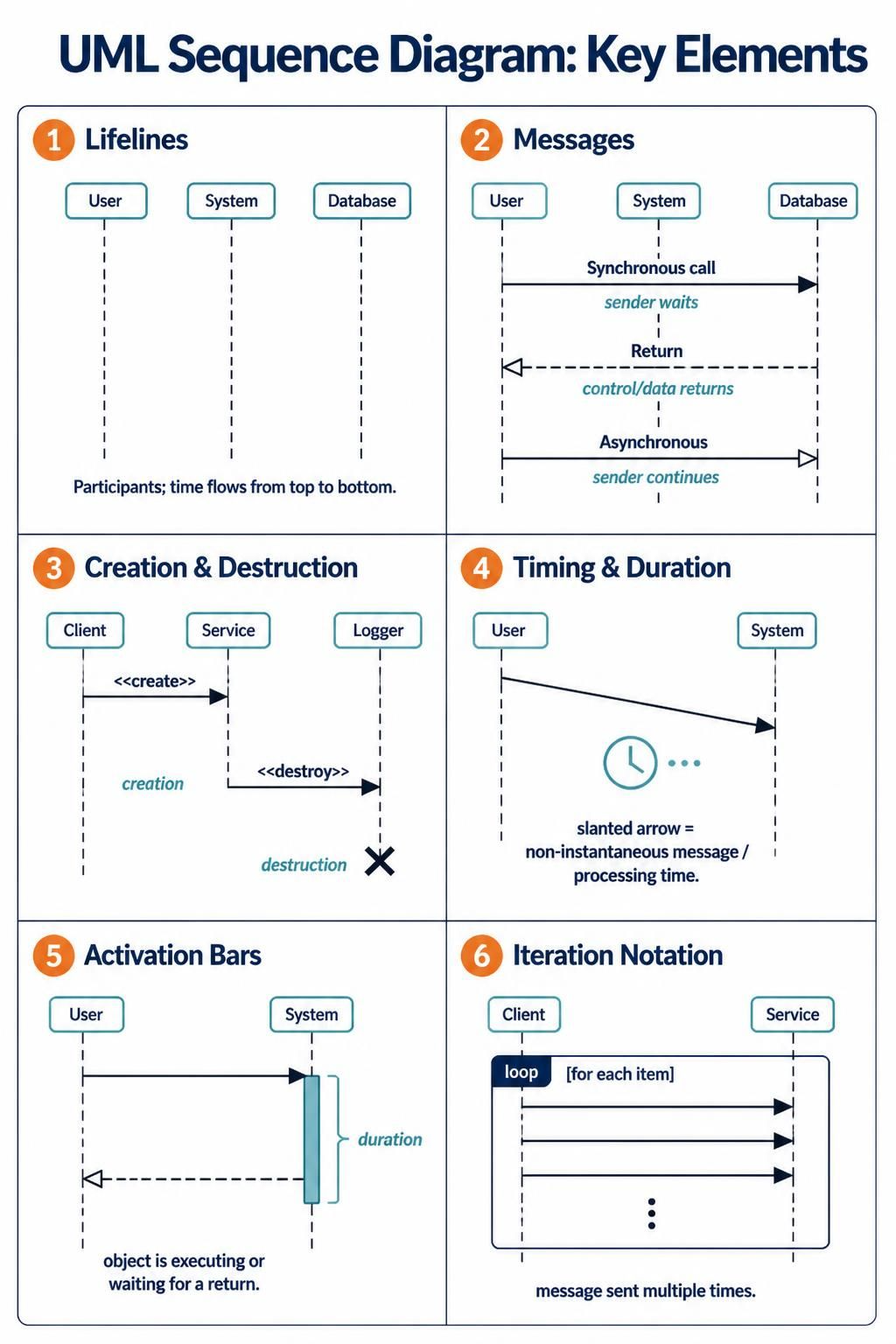
UML Sequence Diagrams are one of the most powerful tools in a software architect’s arsenal. While they look like simple flowcharts, they actually represent a complex interaction of time, control flow, and object relationships. Understanding these diagrams is crucial for bridging the gap between abstract requirements and concrete code implementation.
In this tutorial, we will dissect the core components shown in the provided diagram, moving from the fundamental “Lifelines” to the advanced logic of “Iteration Notation.” We will also explore how to leverage Visual Paradigm to bring these diagrams to life.
1. Lifelines: The Backbone of Time
The most distinct feature of a sequence diagram is the vertical dashed line extending downwards from an object or actor. This is known as a Lifeline.
- Definition: A lifeline represents the existence of an object over a period of time. In the diagram, you see participants like User, System, and Database.
- Time Flow: Unlike a standard flowchart where time might move left-to-right, in a sequence diagram, time flows strictly from top to bottom. The top of the diagram represents the start of the interaction, and the bottom represents the end.
Key Concept: Participants
Participants can be anything that holds state or performs an action: a human user, a class instance in code, a microservice, or a database. The vertical line simply signifies that the participant is “alive” and participating in the current scenario.
2. Messages: The Interaction
Horizontal arrows connecting the lifelines represent Messages. These messages define the communication between objects. The direction of the arrowhead tells you the type of message being sent.
A. Synchronous Calls
The standard solid line with a filled arrowhead represents a Synchronous Call.
- Behavior: When the sender (User) sends a synchronous call to the receiver (System), the sender waits for a response before it can proceed.
- Return: The dashed line with an open arrowhead pointing back is the Return message. This indicates that control and data are being passed back to the caller.
B. Asynchronous Messages
When a sender does not need to wait for an immediate response, it sends an Asynchronous message. This is depicted by a solid line with a hollow (open) triangle arrowhead.
- Behavior: The sender continues its own processing immediately after sending the message. The receiver processes the message in the background.
3. Creation and Destruction
Objects in a system are not static; they are created and destroyed throughout the lifecycle of an application. Sequence diagrams allow us to model this explicitly.
Creation
To create a new object, we use a message labeled with the stereotype <<create>>. In the diagram, the Client creates a Service instance. Once created, the new object’s lifeline begins.
Destruction
To end the lifecycle of an object, we use the <<destroy>> stereotype. This is visually represented by a large X at the bottom of the lifeline. This signifies that the object is no longer active and its resources should be cleaned up.
4. Timing and Duration
Real-world interactions are not always instantaneous. Sometimes, a message takes time to traverse the network or for the system to process data.
- Slanted Arrows: In the “Timing & Duration” section, notice the slanted arrow pointing from the User to the System. This indicates a non-instantaneous message or processing time.
- Visualizing Latency: The vertical gap between the arrow start and end (or the slant itself) can be used to conceptually represent latency or processing delay.
5. Activation Bars (Execution Occurrences)
Have you ever seen a thin, rectangular bar on a lifeline? This is an Activation Bar.
- Meaning: The activation bar represents a period during which an object is performing an action or waiting for a return. It indicates that the object is active.
- Duration: The top of the bar is where the object starts working (receives a message), and the bottom is where it finishes. In the diagram, the System has a long activation bar, indicating it is busy processing for a significant duration before returning control.
6. Iteration Notation (Loops)
Sequence diagrams can get cluttered if you draw the same message 100 times for a loop. Instead, UML uses a frame to denote repetition.
- The Loop Frame: A rectangular box surrounding the messages is labeled
loop. - Condition: Inside the frame, you will see a condition like
[for each item]. This tells the reader that the messages inside this box are repeated as long as the condition is true. - Ellipsis: The three dots
...at the bottom indicate that the sequence continues for an indefinite number of times.
Tooling: Visual Paradigm
While drawing sequence diagrams on paper is a great way to brainstorm, creating professional, executable, and collaborative diagrams requires robust software. Visual Paradigm is the industry-standard tool for this purpose.
Visual Paradigm offers a comprehensive suite of features specifically designed for UML modeling. It allows users to:
- Drag-and-Drop Interface: Easily place lifelines, actors, and objects onto the canvas.
- Auto-Generation: Generate sequence diagrams directly from Java or C# source code, or conversely, generate code from your diagrams.
- Notation Compliance: It strictly adheres to UML standards, ensuring that your diagrams are universally understood by developers and stakeholders.
For those looking to master these diagrams without the cost of enterprise licenses, Visual Paradigm also provides a UML Free Tool version. This allows students and hobbyists to access the core diagramming capabilities to practice creating lifelines, messages, and activation bars.