
Mastering UML Sequence Diagrams: Building a Place Order Workflow in Visual Paradigm
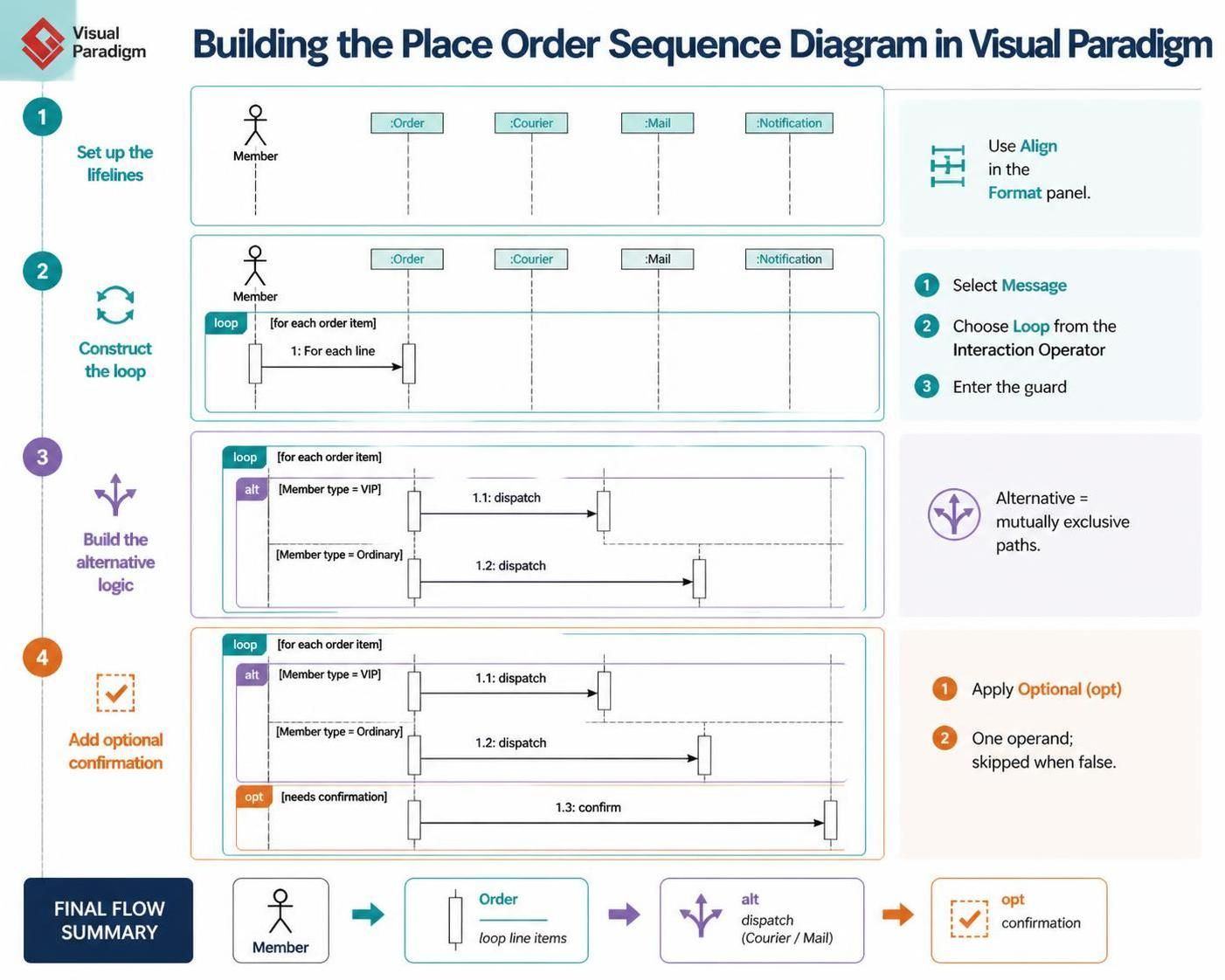
Sequence diagrams are one of the most powerful tools in the UML arsenal for visualizing dynamic system behavior. They allow developers and architects to map out the exact sequence of interactions between different components over time. In this tutorial, we will deconstruct a complex “Place Order” scenario, demonstrating how to model iterative processes, conditional logic, and optional notifications using Visual Paradigm.
This guide focuses on translating a business requirement—handling order items, dispatching based on membership tiers, and sending confirmations—into a precise technical specification.
Phase 1: Setting Up the Lifelines
The foundation of any sequence diagram is the identification of the participants. In our Place Order scenario, we have an external actor and several internal system components. Open Visual Paradigm and create a new Sequence Diagram.
- The Actor: Drag and drop an Actor icon from the toolbar. This represents the user and label it
Member. - The System Objects: We need to represent the Order object, the Courier service, the Mail service, and the Notification service. Drag and drop four Lifeline icons onto the diagram.
- Labeling: Double-click each lifeline to assign the following labels:
:Order,:Courier,:Mail, and:Notification. Note the use of the colon prefix, which indicates these are instances of their respective classes.
Pro Tip: Precision matters in professional diagrams. Use the Align tool in the Visual Paradigm Format panel to ensure all lifelines are evenly spaced horizontally, creating a clean, readable layout.
Phase 2: Constructing the Loop (Iterative Logic)
Real-world systems rarely process a single item in isolation. An order typically contains multiple line items. To model this, we utilize the Loop interaction operator.
- Initiate the Message: Select the Message tool and draw a synchronous arrow from
Memberto:Order. Label this message1: For each line. - Apply the Operator: With the message selected, look for the Interaction Operator resource. In Visual Paradigm, this is often available via the smart manipulation menu or the main toolbar. Select Loop.
- Define the Guard: A frame will appear around the message. Click on the header of this frame (labeled “loop”) and type the guard condition:
[for each order item]. This tells the system that the following sequence repeats for every item in the collection.
Phase 3: Building Alternative Logic (VIP vs. Ordinary)
Once an order item is processed, the system must decide how to handle it. In our scenario, the dispatch method depends on the member’s status. This is a classic use case for the Alternative (alt) operator.
- Dispatch Logic: Inside the Loop frame, draw a message from
:Orderto:Courier. Label it1.1: dispatch. - Splitting Paths: Select this message and apply the Alternative (alt) operator. Visual Paradigm will automatically split the frame into two operands (branches).
- Top Operand (VIP): In the top branch, set the guard condition to
[Member type = VIP]. Here, the system sends the message to:Courier, indicating an expedited or direct service. - Bottom Operand (Ordinary): In the bottom branch, draw a new message from
:Orderto:Mail. Label it1.2: dispatch. Set the guard condition to[Member Type = Ordinary].
Visual Paradigm Feature: Ensure the activation bars (the thin rectangles on the lifelines) extend correctly during the dispatch phase. This visual cue is critical for understanding processing time and resource availability.
Phase 4: Adding the Optional Confirmation
Not all orders require a confirmation step, or perhaps it is only needed under specific conditions. For this non-mandatory flow, we use the Optional (opt) operator.
Below the alt frame (but still logically associated with the order processing), draw a message from :Order to :Notification. Label it 1.3: confirm. Apply the Optional operator to this message and set the guard condition to [needs confirmation]. This signifies that if the condition is true, the notification is sent; otherwise, this step is skipped entirely.
Understanding the Final Flow Summary
When you have completed these steps, your diagram tells a complete story. The final flow summary in Visual Paradigm helps you verify the logic:
- Member Initiation: The process begins with the user interaction.
- Looping: The system iterates through line items.
- Conditional Dispatch: The system branches to either Courier or Mail based on the guard.
- Optional Notification: The system checks for confirmation requirements.
Conclusion
By following this workflow in Visual Paradigm, you have transformed a complex set of business rules into a clear, executable design. You have mastered the use of Loop for iteration, Alt for mutually exclusive choices, and Opt for conditional execution. These are the building blocks of robust system architecture.