
Mastering UML Interaction Overview Diagrams: Architecting Complex Scheduling Flows
In the realm of software architecture, few visual tools are as powerful for bridging the gap between high-level business logic and detailed system behavior as the Interaction Overview Diagram (IOD). While often overshadowed by Sequence Diagrams or Activity Diagrams, the IOD serves a unique and critical role: it acts as the “master control” for your system’s conversational flows.
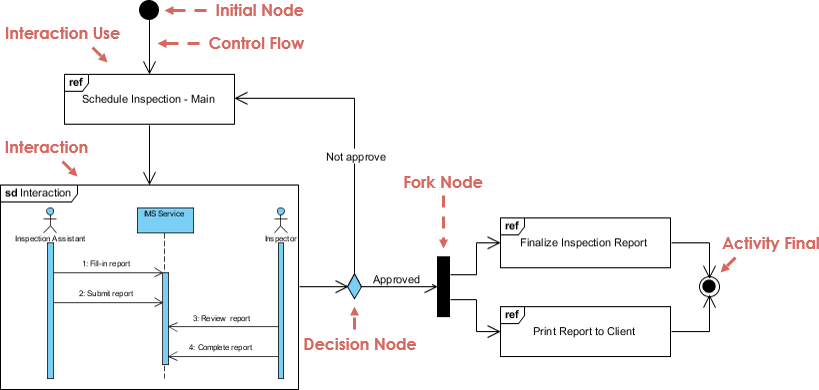
Let’s analyze the provided architectural example: a Scheduling System. This diagram demonstrates how to orchestrate complex processes—specifically an inspection workflow—by combining the structural logic of activity diagrams with the detailed interaction of sequence diagrams.
1. The Concept: What is an Interaction Overview Diagram?
An Interaction Overview Diagram is a hybrid diagram type in the Unified Modeling Language (UML). It allows architects to describe the overall flow of interactions among system participants. You can think of it as an Activity Diagram where the nodes are not simple actions, but rather Interaction Uses.
When you need to manage a process that involves:
- Conditional logic (Approve vs. Not Approve)
- Parallel processing (Forking tasks)
- High-level orchestration of multiple complex sequences
Then the Interaction Overview Diagram is your primary tool. It abstracts away the minutiae of individual message exchanges, allowing you to focus on the “Big Picture” decision points.
2. Anatomy of the Scheduling System Diagram
Let’s break down the components visible in our Scheduling System example, moving from the top-level entry point to the specific logic branches.
A. The Entry Point and Control Flow
Every UML diagram with logic begins with an Initial Node (the solid black circle at the top). This represents the trigger for the system—perhaps a user clicking “Schedule New Inspection” in the UI.
From this node, a control flow arrow points to a Ref Node (labeled “ref”). This is a critical concept: the “ref” stands for Reference. It indicates that the detailed logic for “Schedule Inspection – Main” is defined elsewhere (likely in a separate Sequence Diagram). This keeps the overview diagram clean and readable.
B. The Interaction Use
The diagram shows a transition from the main ref node into a Interaction Use (the large rectangle labeled “sd Interaction”).
- sd: Stands for “sequence diagram”.
- Content: This box encapsulates the specific sequence between the Inspection Assistant and the Inspector via an MS Service.
- Logic: Inside this box, we see a 4-step process: Fill-in report, Submit report, Review report, and Complete report.
C. Decision Nodes and Branching
Once the interaction completes, the flow reaches a Decision Node (the diamond shape). This represents a binary or multi-way choice point.
- Not Approve: If the decision is negative, the control flow loops back to the “Schedule Inspection – Main” ref node. This implies a retry or a reset of the process.
- Approved: If the decision is positive, the flow proceeds to the next phase.
D. Forking and Parallelism
After approval, the diagram utilizes a Fork Node (the thick black bar). This is a concurrency construct. It signifies that the system does not need to wait for one task to finish before starting the next. Instead, two tasks are spawned simultaneously:
- Finalize Inspection Report: A reference to a sub-process for generating the internal documentation.
- Print Report to Client: A reference to a sub-process for handling external delivery.
E. Merging and Termination
Following the fork, the diagram shows a Join Node (another thick black bar). This waits for both parallel branches to complete before the flow continues. Finally, the arrow points to the Activity Final Node (the black circle with a ring), signifying the successful completion of the entire scheduling workflow.
3. Why Use Interaction Overview Diagrams?
One might ask, “Why not just use a massive Sequence Diagram?” The answer lies in complexity management.
Sequence diagrams are excellent for detailing how a specific message is passed between objects. However, they struggle to show when a sequence is triggered or what happens if a user decides to cancel a process midway. Interaction Overview Diagrams solve this by acting as a container. They allow you to:
- Modularize Logic: You can break a massive system into “Main,” “Review,” and “Finalize” chunks.
- Visualize Loops: It is much easier to see a “Retry” loop in an IOD than in a tangled sequence diagram.
- Manage Concurrency: They clearly depict parallel tasks (Fork/Join) which are often hidden in standard sequences.
4. Implementation Considerations
When modeling this architecture, keep the following best practices in mind:
- Abstraction Levels: Use “Ref” nodes for high-level logic that is too complex for the current view. Use “Interaction Use” boxes for specific conversational flows that need to be referenced frequently.
- Consistent Naming: Ensure that the “Schedule Inspection – Main” node in the overview diagram matches the title of the corresponding Sequence Diagram exactly to avoid mapping errors.
- Flow Direction: Always use control flow arrows (solid lines with arrowheads) to indicate the movement of data or logic between these interaction nodes.
By mastering the Interaction Overview Diagram, you move from documenting simple interactions to architecting robust, stateful systems that handle complexity with grace.