
Mastering the VPasCode Workflow: From Browser-Based Editing to Production-Ready Diagrams
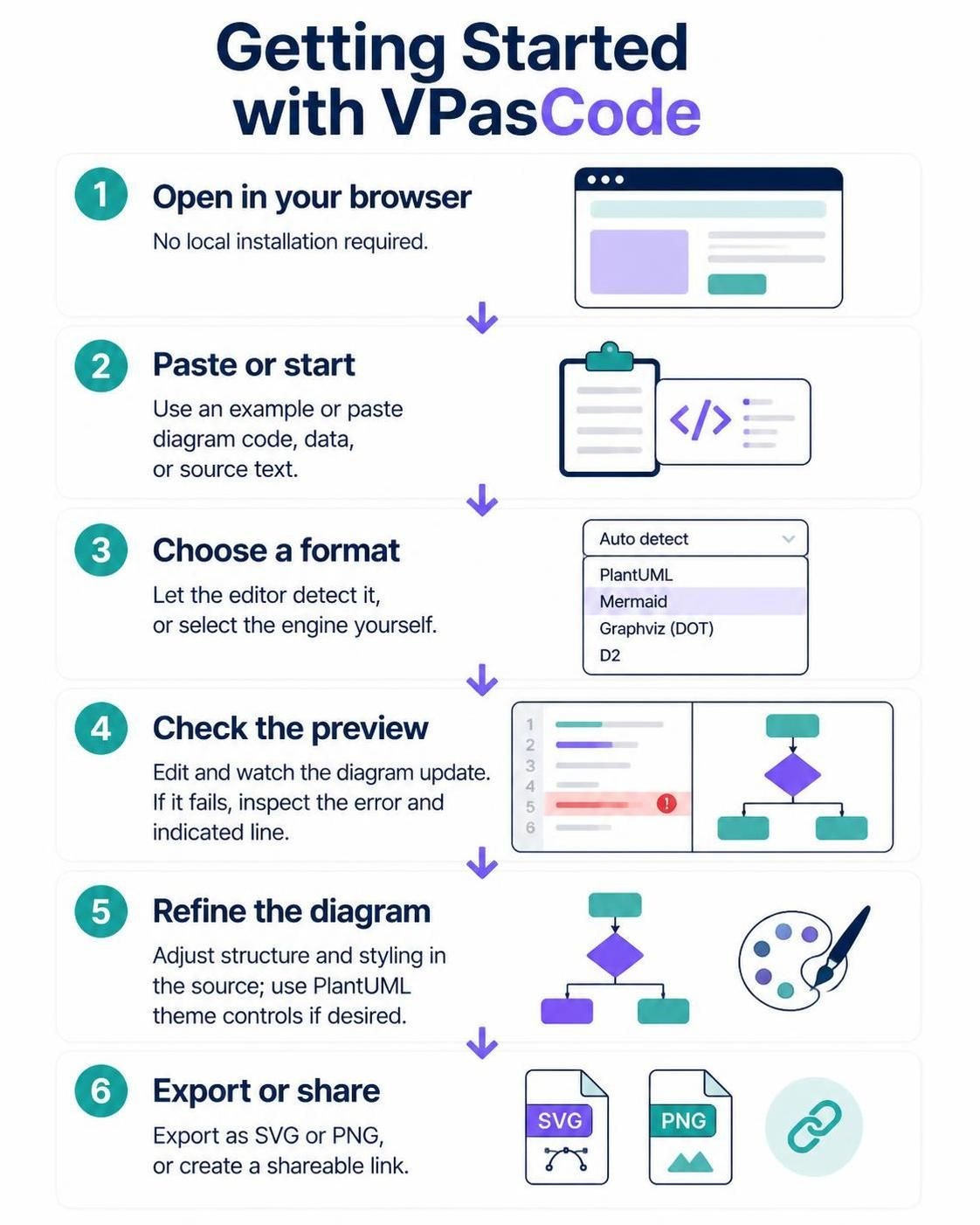
In the modern landscape of technical documentation and system architecture, the barrier between concept and visualization is often the complexity of the tooling required. VPasCode represents a paradigm shift by leveraging “Diagram as Code” principles within a zero-installation web environment. This tutorial breaks down the systematic workflow of VPasCode, transforming the image-based instructions into a comprehensive technical guide on how to architect, style, and deploy visual models using the Visual Paradigm AI ecosystem.
1. The Browser-Native Architecture
The most distinct feature of VPasCode is its deployment model. Unlike traditional CAD or modeling tools that require heavy local installation (often gigabytes in size), VPasCode is architected to run entirely within a standard web browser. This approach leverages the power of modern JavaScript rendering engines to compile code into vector graphics on the fly.
Why this matters: It eliminates the “it works on my machine” problem. You can start modeling immediately without configuring build environments or worrying about OS compatibility.
2. Input Methods: The “Paste or Start” Paradigm
VPasCode supports a flexible entry point for your modeling needs. Whether you are starting a fresh architecture or refactoring an existing one, the system is designed for two primary workflows:
- The Starter Workflow: Begin with a supported example. This is ideal for learning syntax and understanding the capabilities of the underlying engine.
- The Migration Workflow: Paste existing diagram code, data, or source text directly into the editor. This allows for the rapid conversion of legacy documentation into modern, rendered diagrams.
3. Engine Detection and Format Selection
One of the critical technical decisions in diagramming is selecting the right engine. VPasCode handles this through an intelligent detection system, but retains manual control for precision.
When you input text, the editor attempts to Auto Detect the format. If the format is ambiguous, or if you are working with a specific visualization requirement, you can manually select the engine from the workspace dropdown. The supported engines typically include:
- PlantUML: Excellent for UML, sequence, and class diagrams.
- Mermaid: A popular choice for web-native flowcharts and sequence diagrams.
- Graphviz (DOT): The industry standard for graph theory visualizations and directed acyclic graphs.
- D2: A declarative diagram language designed for code-oriented diagrams.
4. The Iterative Preview Loop
Real-time feedback is the core of the coding workflow. The “Check the Preview” phase involves a tight loop between your source code and the visual output.
- Live Rendering: As you type, the diagram updates. This immediate visual feedback helps bridge the gap between abstract text and concrete structure.
- Error Inspection: If the diagram fails to render, the system highlights the specific line causing the error. This is crucial for debugging. Instead of guessing where a bracket is missing or a syntax rule is broken, the editor points directly to the line number (e.g., Line 5), allowing for rapid iteration.
5. Refinement: Styling and Structure
Once the logic and structure are sound, the focus shifts to aesthetics. In VPasCode, styling is often controlled via source code rather than a graphical drag-and-drop interface. This ensures consistency across your documentation.
For PlantUML specifically, the system exposes theme controls. This allows you to define global styles—colors, fonts, and shapes—via a few lines of configuration code, ensuring your entire documentation suite looks uniform.
Example: PlantUML Theme Configuration
Here is how you might define a custom look and feel in the source code to refine the diagram’s appearance:
@startuml
skinparam defaultDirection LEFT_TO_RIGHT

' Theme Controls
skinparam backgroundColor #EEEEEE
skinparam shadowing false
skinparam class {
  BackgroundColor White
  BorderColor Black
}

' Diagram Logic
actor User
box "System"
  rectangle "Process"
endbox
User -> System : Request
@enduml
6. Export and Distribution
The final step in the VPasCode workflow is delivering the asset. The system offers high-fidelity export options suitable for professional documentation:
- SVG (Scalable Vector Graphics): Best for web integration and high-resolution print, as it maintains crisp edges at any zoom level.
- PNG: Best for embedding in documents, emails, or presentations where a raster image is preferred.
- Shareable Link: For collaboration, you can generate a URL that allows team members to view or review the diagram without needing the editor installed.
Conclusion
By adopting the VPasCode workflow, engineers and architects move from manual drawing to logical definition. This shift not only speeds up the creation process but also allows for version control, collaboration, and consistent styling through simple text editing.