


Introduction
As someone who regularly creates training materials, project portfolios, and client-facing reports, I’ve long struggled with making documentation feel engaging rather than obligatory. Static PDFs get downloaded and forgotten; lengthy web pages can feel overwhelming. When I heard about Visual Paradigm’s new workflow for embedding interactive flipbooks and digital bookshelves directly into OpenDocs, I decided to test it end-to-end. What follows is my hands-on review of the process—not a promotional piece, but a genuine account of what worked, what surprised me, and whether this integration is worth adding to your documentation toolkit.
Why Interactive Flipbooks Matter in Documentation
Before diving into the steps, it’s worth noting why this feature caught my attention. Traditional documentation is often linear and passive. Flipbooks, by contrast, mimic the tactile experience of reading a physical book—with page-turning animations, embedded media, and responsive design. When these are embedded directly into a knowledge base like OpenDocs, readers don’t have to leave the page to access rich, curated content. For teams managing onboarding materials, product catalogs, or project retrospectives, this can significantly improve engagement and information retention.
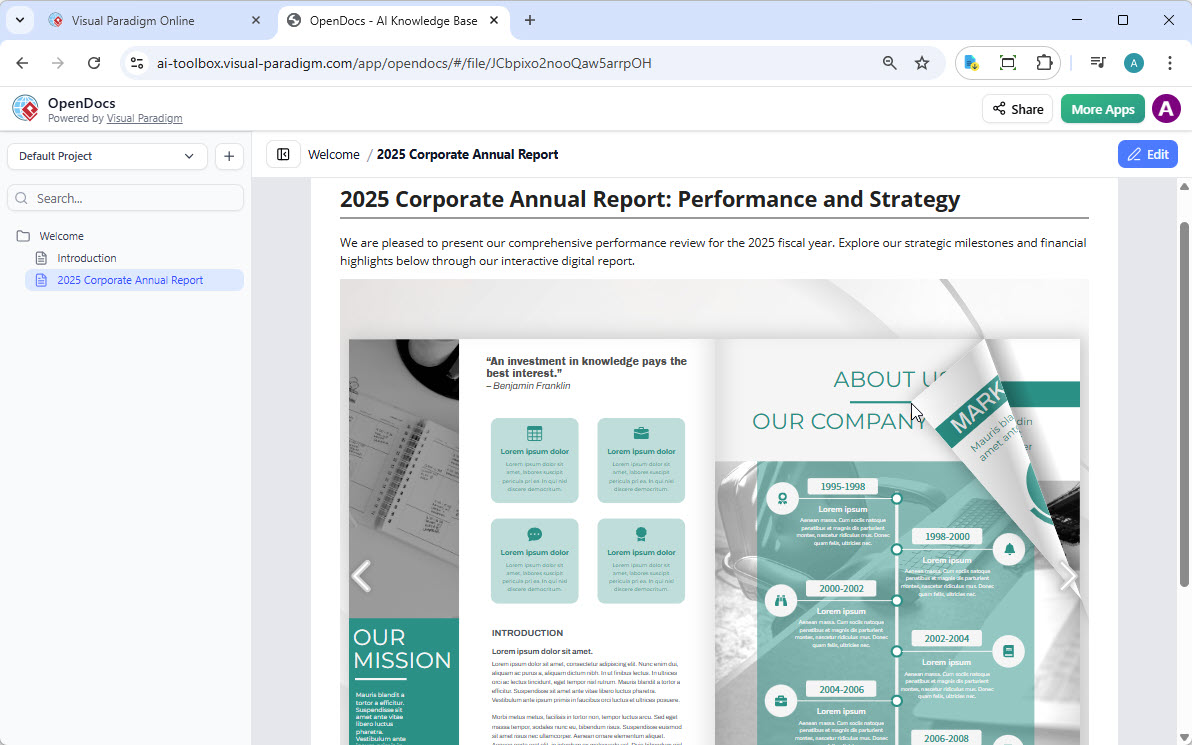
What I Tested: Visual Paradigm’s Flipbook Capabilities
I started by exploring what the flipbook tool itself offers before attempting integration. Here’s what stood out during my trial:
-
Format Flexibility: I uploaded a PDF report, a Word training guide, and even a PowerPoint deck. Each converted cleanly into a flipbook with minimal manual adjustment.
-
AI-Assisted Content Creation: The AI assistant helped me outline a new product guide and even suggested illustrations. While not a replacement for human editing, it accelerated the drafting phase noticeably.
-
Interactive Enhancements: Adding a short demo video to one page and clickable resource links to another took seconds. The page-flip sound effect is optional—a nice touch for immersion without being gimmicky.
-
Brand Consistency: Customizing the cover and color scheme to match our company palette was straightforward via the drag-and-drop editor.
-
Mobile Responsiveness: I tested the published flipbook on desktop, tablet, and phone. Layouts adapted cleanly, and touch gestures for page-turning felt intuitive.
These features alone make the flipbook maker compelling. But the real value emerged when I connected it to OpenDocs.
Step-by-Step: Sharing a Flipbook from Visual Paradigm Online to OpenDocs
My Workflow Experience
-
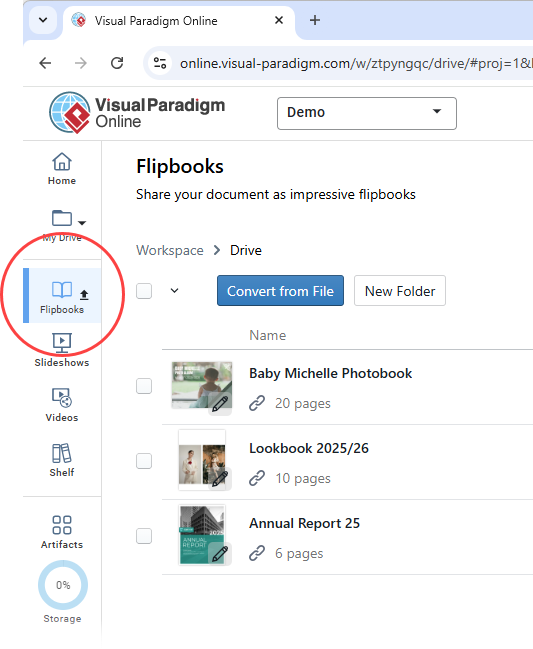
Accessing the Flipbook Library: In Visual Paradigm Online, I navigated to my workspace and selected Flipbooks from the left menu. The interface displayed all my published flipbooks in a clean grid view.
-
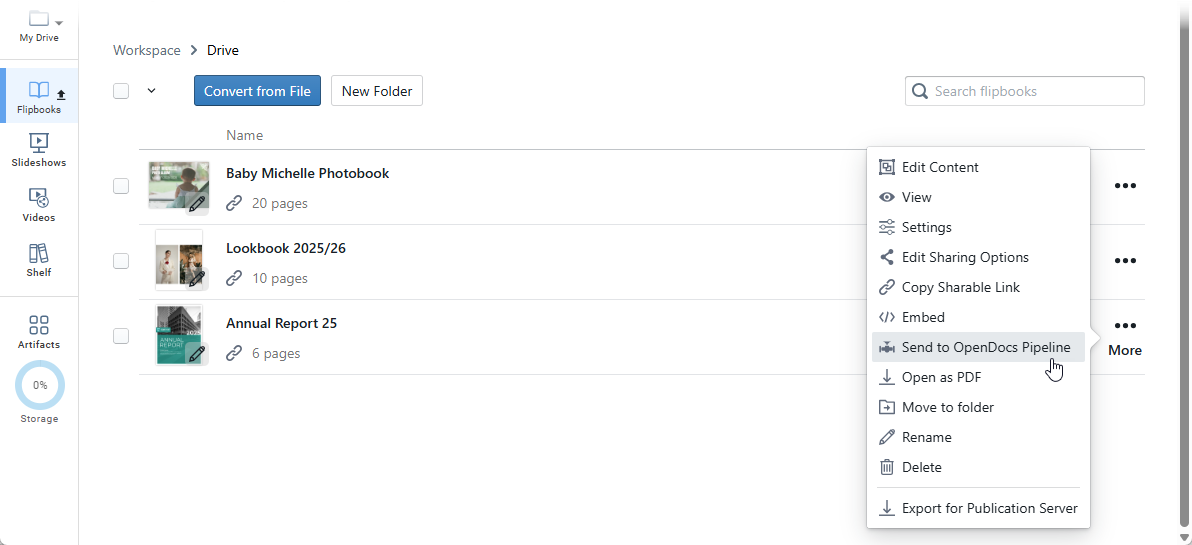
Initiating the Share: For the flipbook I wanted to embed, I clicked More… on its card and selected Send to OpenDocs Pipeline.
-
Adding Context (Optional): A dialog prompted me to add a comment about this share—useful for team collaboration. I noted “Q2 Training Module v3” and clicked OK.
The transfer to the Pipeline was near-instantaneous. No export files, no manual uploads—just a seamless handoff.
Embedding the Flipbook in OpenDocs: A Reader-Centric Experience
Once the flipbook was in the Pipeline, embedding it into an OpenDocs page was equally smooth:
-
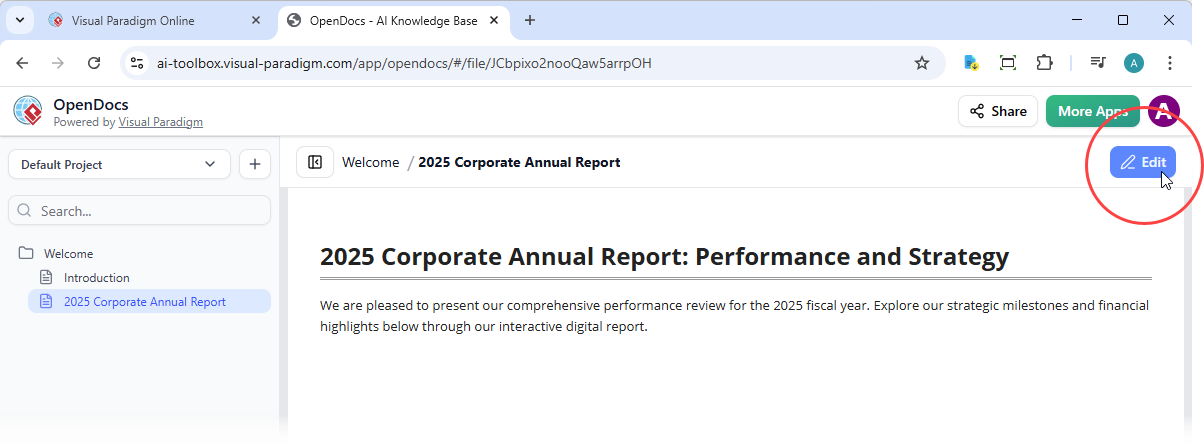
Editing the Target Page: I opened the relevant OpenDocs page and clicked Edit in the top-right corner.
-
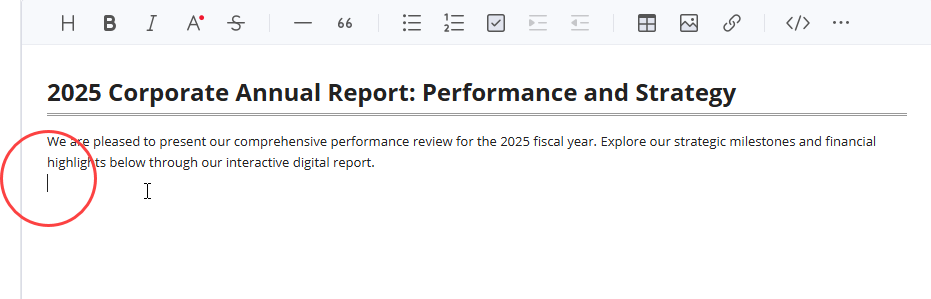
Positioning the Cursor: I placed my cursor exactly where I wanted the flipbook to appear—between two paragraphs of explanatory text.
-
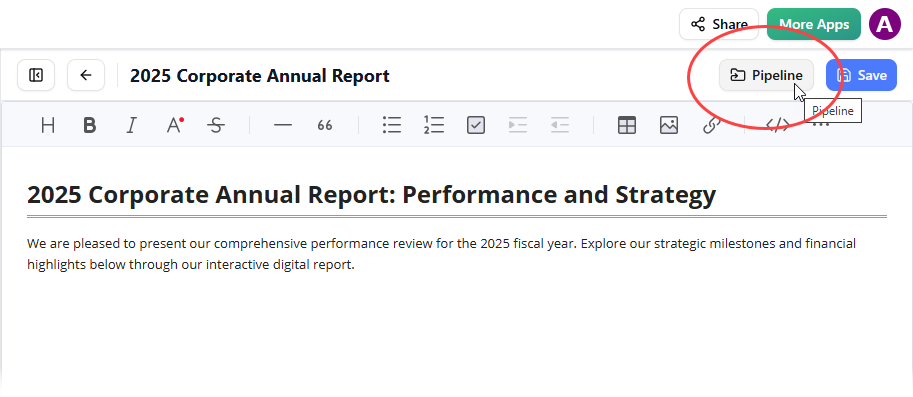
Accessing the Pipeline Library: Clicking the Pipeline button (top-right) opened a panel with synced assets.
-
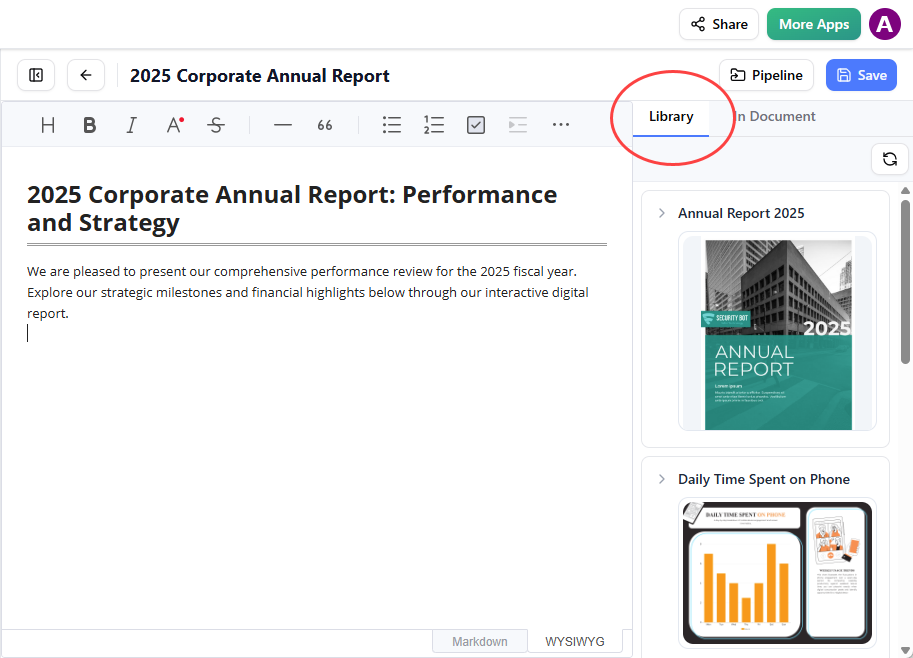
Selecting from Library: Under the Library tab, my recently shared flipbook appeared with a thumbnail preview.
-
Insertion and Adjustment: I clicked the flipbook to insert it. Pro tip: if it appears at the end of the page, select it and press Enter to create a new line for better spacing.
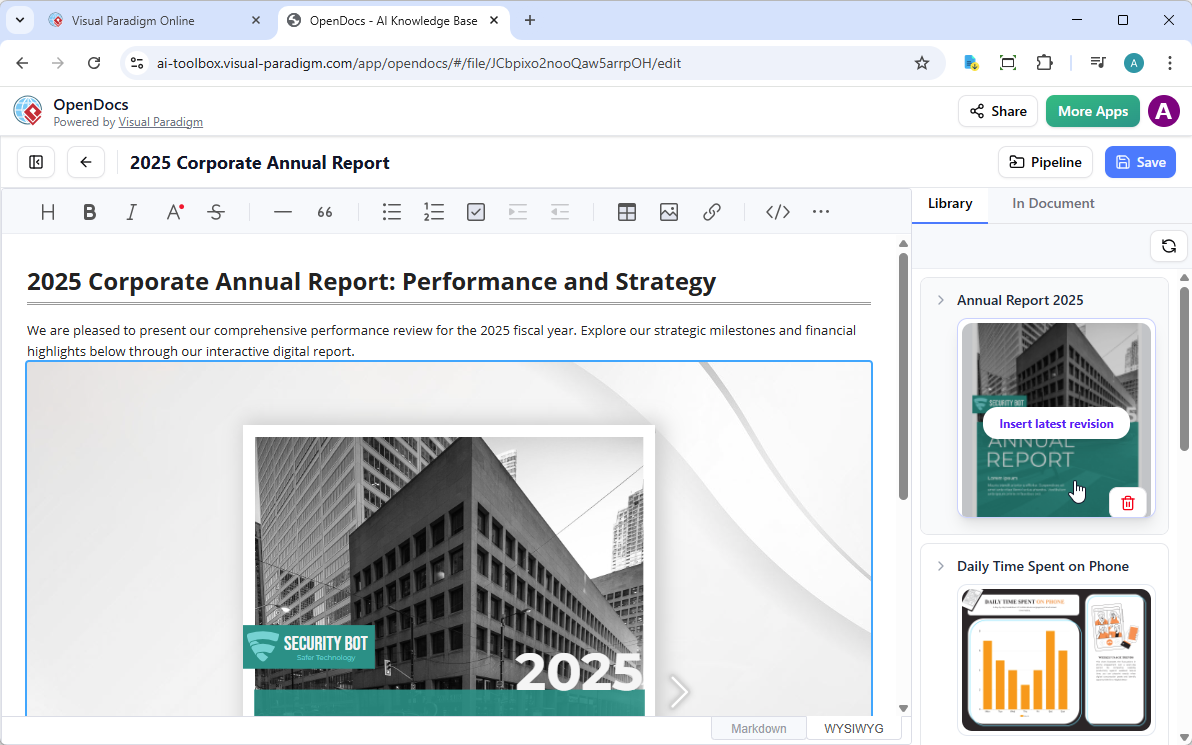
Important Note: While in Edit mode, the flipbook displays as a static placeholder. To test the interactive experience, I saved changes and exited Edit mode. The page-flip animation, embedded video, and clickable links all functioned perfectly. Sharing the page via OpenDocs’ Share button preserved the interactive experience for recipients.
Scaling Up: Embedding Entire Digital Bookshelves
After successfully embedding a single flipbook, I explored the next-level feature: sharing entire curated bookshelves. This is ideal for presenting series—like a multi-part training curriculum or a portfolio of case studies—in one organized, browsable interface.
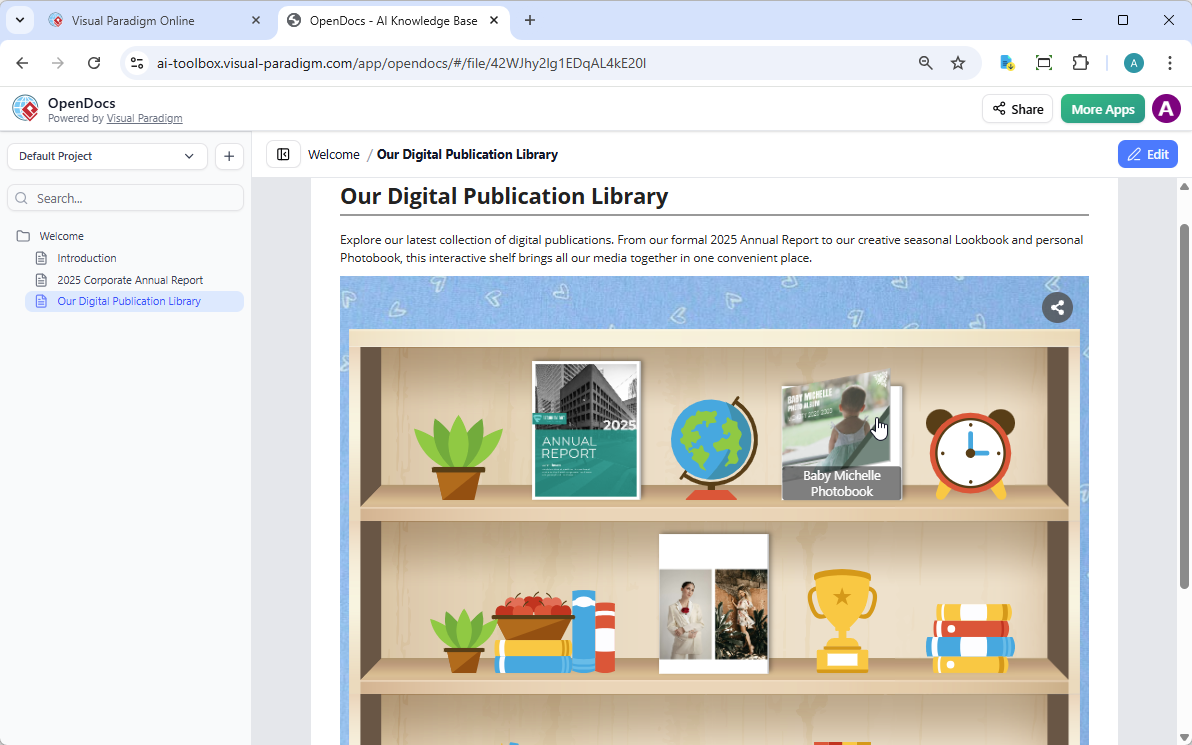
When to Use Bookshelves vs. Individual Flipbooks
-
Individual Flipbooks: Best for spotlighting a single, high-impact document (e.g., an annual report or executive summary).
-
Curated Bookshelves: Perfect for grouping related materials—like a “New Hire Onboarding” collection containing policy docs, tutorial videos, and interactive checklists.
My Bookshelf Sharing Workflow
-
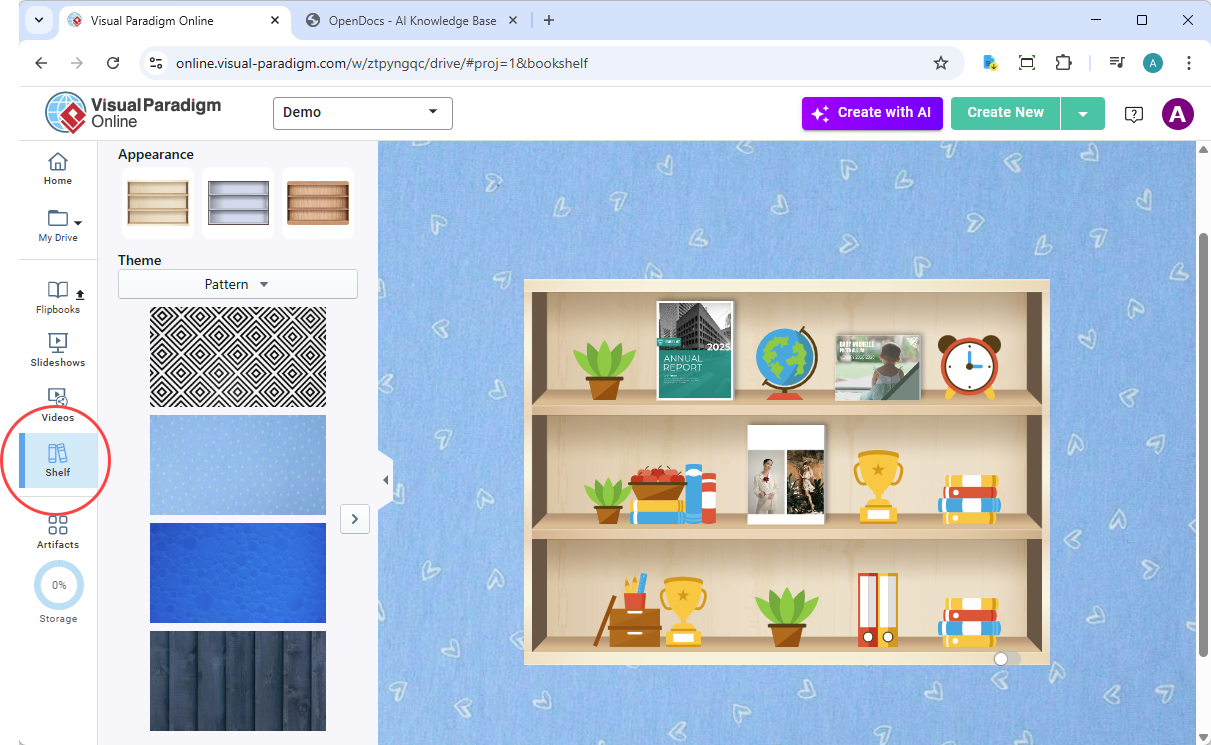
Navigating to Shelves: In Visual Paradigm Online, I selected Shelf from the left menu to view my digital bookshelves.
-
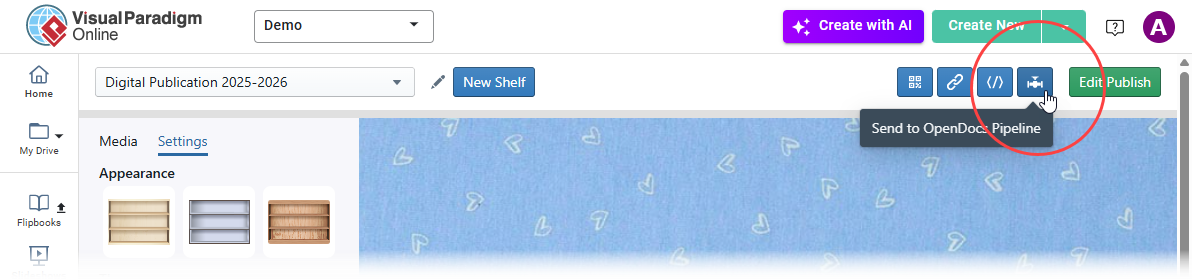
Selecting and Sending: I chose the bookshelf I wanted to publish, then clicked the Pipeline icon at the top-right.
-
Optional Comment: As before, I added a brief note (“Product Documentation Library – April 2026”) and confirmed.
Embedding the Bookshelf in OpenDocs
The embedding process mirrored the flipbook workflow with minor UI differences:
-
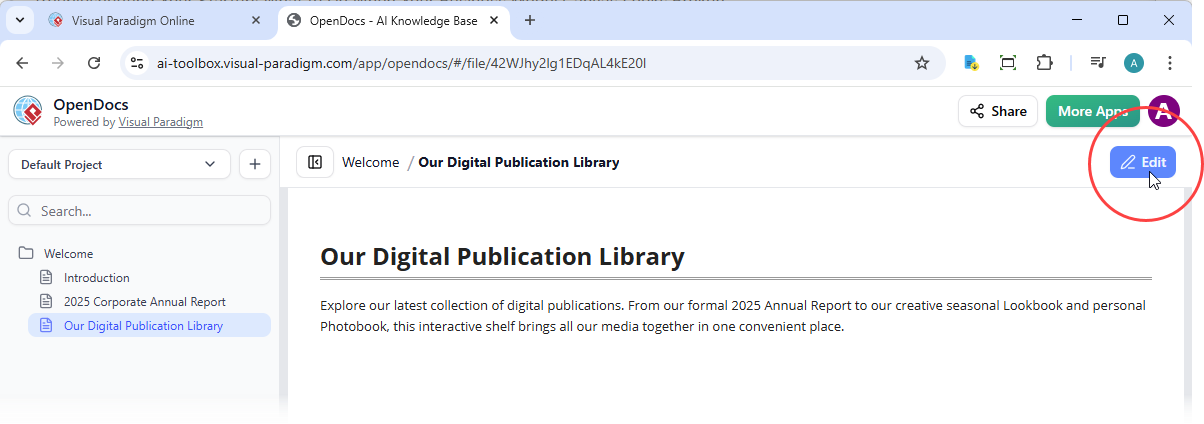
Open the target OpenDocs page and click Edit.
-
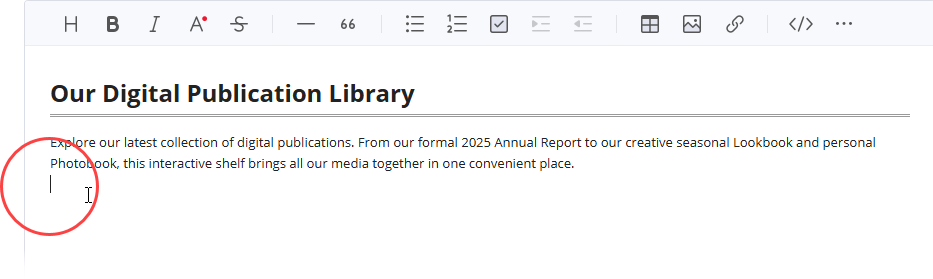
Position your cursor where the shelf should appear.
-
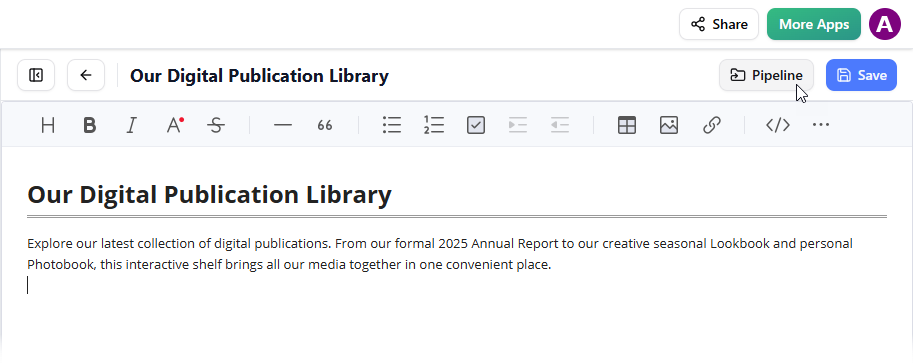
Click the Pipeline button (top-right).
-
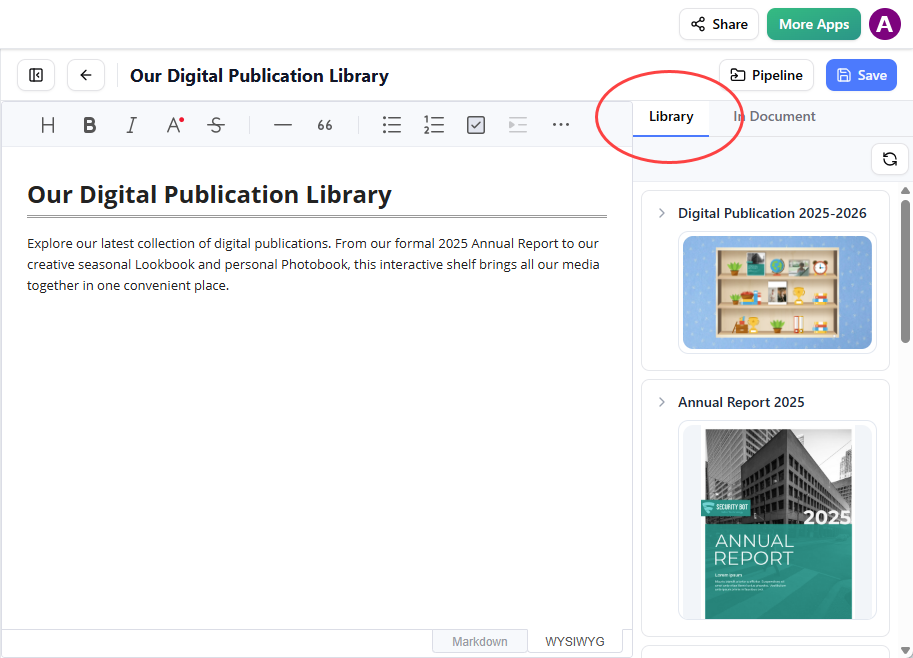
Open the Library tab to see your synced bookshelf.
-
Click the bookshelf thumbnail to insert it.
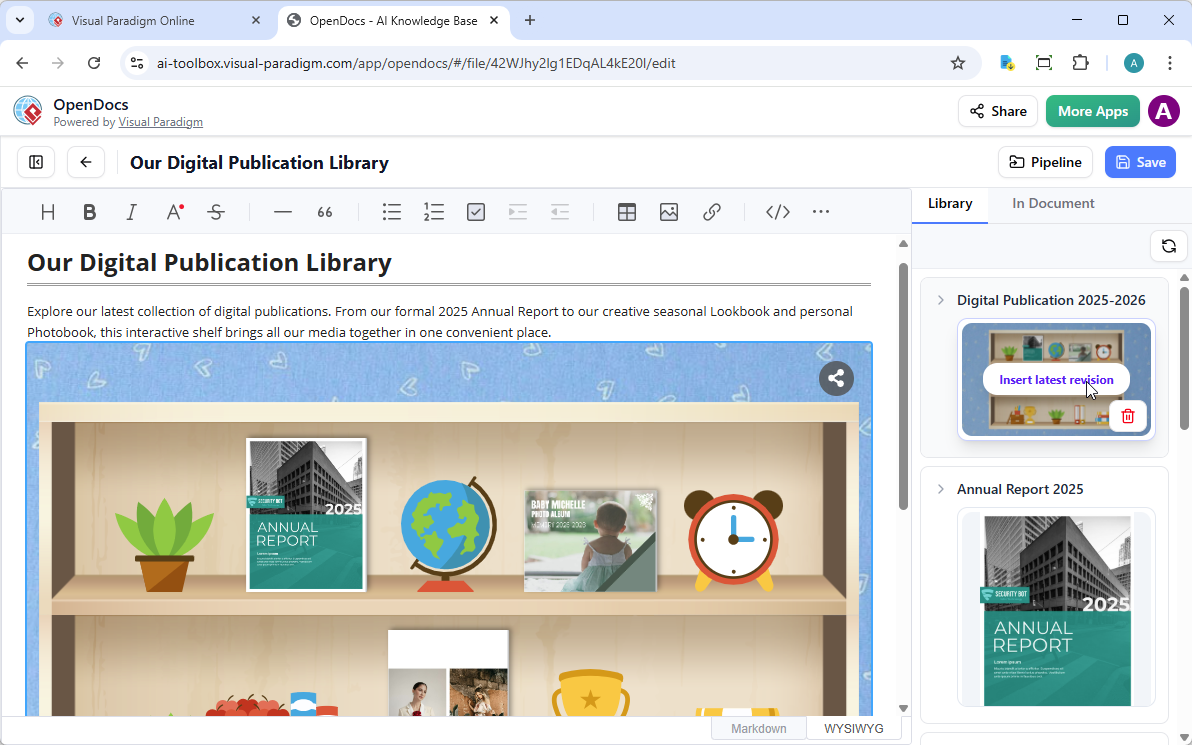
Tip: After insertion, select the shelf and press Enter to move your cursor below it for continued editing.
Again, interactivity only activates after saving and exiting Edit mode. Once live, readers can browse the shelf, open individual flipbooks, and interact with embedded media—all without leaving the OpenDocs page.
My Verdict: Strengths and Considerations
What Impressed Me
✅ Seamless Integration: The Pipeline feature eliminates manual file handling. Syncing feels reliable and fast.
✅ Enhanced Engagement: Flipbooks transform static content into an experience. Page-turning animations and embedded media keep readers engaged longer.
✅ Flexible Presentation: The ability to share either individual flipbooks or curated shelves accommodates diverse content strategies.
✅ Mobile-First Design: Responsive behavior across devices ensures accessibility for remote or on-the-go teams.
✅ AI Assistance: While not flawless, the AI tools for outlining and illustration generation provide a helpful starting point for content creation.
Areas for Potential Improvement
⚠️ Learning Curve for New Users: Teams unfamiliar with Visual Paradigm’s ecosystem may need initial onboarding to leverage the full workflow.
⚠️ Edit Mode Limitations: The static placeholder in Edit mode is logical but can be confusing during initial testing—clearer in-editor hints could help.
⚠️ License Requirements: Access requires Visual Paradigm Online (Combo Edition) or Desktop (Professional Edition), which may be a consideration for budget-conscious teams.
Conclusion
After putting Visual Paradigm’s flipbook and bookshelf integration through its paces, I can confidently say this workflow addresses a genuine pain point in modern documentation: making information not just accessible, but engaging. For teams already using Visual Paradigm tools, adding interactive flipbooks to OpenDocs requires minimal effort yet delivers noticeable value in reader experience. Even for those evaluating documentation platforms, this feature set demonstrates a thoughtful approach to blending rich media with structured knowledge management.
If your work involves creating training materials, client portfolios, or any content where presentation impacts comprehension, this integration is worth exploring. The ability to transform static documents into interactive, embeddable experiences—without complex coding or third-party hosting—represents a meaningful step forward in how teams share knowledge.
References
- OpenDocs | All-in-One Knowledge Base & Diagramming Tool: Visual Paradigm’s AI-powered documentation platform that integrates diagrams, AI generation, and knowledge management.
- Digital Bookshelf Maker for OpenDocs | Visual Paradigm Online: Announcement about sharing digital bookshelves from Visual Paradigm Online to OpenDocs.
- Visual Paradigm Features – OpenDocs: Official feature overview of OpenDocs including integrated diagramming and documentation capabilities.
- OpenDocs AI-Powered Knowledge Platform Release: Initial release announcement for OpenDocs as an AI-powered knowledge management solution.
- OpenDocs Entity Relationship Diagram AI Generation: Feature release for AI-powered ERD generation in OpenDocs.
- OpenDocs YouTube Demo: Video walkthrough demonstrating OpenDocs capabilities and user interface.
- OpenDocs Pipeline Sync Guide: Tutorial on syncing diagrams from Visual Paradigm tools to OpenDocs via the Pipeline feature.
- Visual Paradigm Online to OpenDocs Export: Guide for exporting content from Visual Paradigm Online to OpenDocs.
- AI Deployment Diagram Generator for OpenDocs: Release of AI-powered deployment diagram creation in OpenDocs.
- AI Flowchart Generator OpenDocs Update: Enhancement to AI flowchart generation capabilities in OpenDocs.
- OpenDocs Integrated Diagram Editor Features: Details on creating various professional diagrams directly within OpenDocs.
- AI Breakdown Structure Chart Maker for OpenDocs: Introduction of AI-assisted breakdown structure chart creation.
- AI EPC Diagram Generator for OpenDocs: Feature for generating Event-driven Process Chain diagrams using AI.
- Visual Paradigm OpenDocs: The Complete Developer’s Guide: Third-party comprehensive guide to using OpenDocs for technical documentation.
- Organization Chart Maker OpenDocs Update: Update adding organization chart creation tools to OpenDocs.
- AI Profile Diagram Generation OpenDocs UML Support: Release adding UML profile diagram support with AI generation.
- Visual Paradigm Pipeline: AI Modeling Ecosystem Bridge: Documentation explaining the Pipeline feature that connects Visual Paradigm tools with OpenDocs.
- Flipbook Maker | Visual Paradigm Online: Tool for creating interactive flipbooks from PDFs, Word docs, and PowerPoint presentations.
- Visual Paradigm Online Platform: Cloud-based diagramming and design platform offering flipbook creation, AI assistance, and collaboration features.
- Virtual Bookshelf Feature | Visual Paradigm Online: Feature page describing the digital bookshelf functionality for organizing and presenting multiple flipbooks.
Related posts:
 My Experience with VP OpenDocs Sharing: When to Use Static Snapshots vs. Live Updates (A User’s Guide)
From Concept to Documentation: The Visual Paradigm Pipeline as Your AI Modeling Ecosystem Bridge
Revolutionizing Software Architecture: The Power of AI-Powered C4 Diagrams in Visual Paradigm
📘 Comprehensive Tutorial: The C4 Model for Software Architecture Visualization
My Experience with VP OpenDocs Sharing: When to Use Static Snapshots vs. Live Updates (A User’s Guide)
From Concept to Documentation: The Visual Paradigm Pipeline as Your AI Modeling Ecosystem Bridge
Revolutionizing Software Architecture: The Power of AI-Powered C4 Diagrams in Visual Paradigm
📘 Comprehensive Tutorial: The C4 Model for Software Architecture Visualization